Not that homepage. With the main focus for the next few weeks going to be on completing and coding the next Devlounge design, as well as testing out new parts and features (along with juggling finals), the content department around here will essentially turn off, with the exception of new Friday Focuses. To prevent the homepage from becoming too stagnant, I will be introducing a lightweight temporary homepage tomorrow or Friday at the latest that will spotlight some of our favorite posts, interviews, and article series. The rest of the site will remain fully functional, without any visual changes. I’d say I’m about 3-4 weeks out of launching the next version. Comments have been mixed, but don’t just go with what that Flickr teaser may have shown you, because the final design will have plenty of nice touches no one has yet to see. If you haven’t done so already, please subscribe to our rss feed to stay on top of updates. We thank you for your patience and understanding during this transition and slow time for us.
Archives for May 2007
Releasing and Promoting Your WordPress Plugin

This post was written as part of the How to Write a WordPress Plugin series.
After you have finished writing your awesome WordPress plugin, there are a few things to consider before releasing and promoting your WordPress plugin.
Prior to Release
Try to Follow the Standards
While it isn’t required to follow the WordPress coding standards, there are some things in there that will make your life easier. One of the more valuable tips in there is to never use shorthand PHP. The reason? Not everybody has shorthand PHP enabled.
So instead of:
[php]
[/php]
You would have:
[php]
[/php]
Make Sure You Have Tested Your Plugin Thoroughly
Find some guinea pigs (er, testers) who would be willing to test your plugin. Technically competent testers are good, but you also want some testers who will represent the average user who knows nothing about programming languages.
It’ll be impossible to find every bug, but at least make an effort to put out a stable release.
Make Sure You Have a Readme File
Before you release a plugin into the wild, make sure you at the very least have a Readme file. This file should contain at the very minimum installation instructions for your plugin. For a stricter version of a readme file, check out the WordPress recommendations regarding a Readme file. There’s even a groovy Readme file validator.
Set Up a Dedicated WordPress Plugin Page
Ajay D’Souza wrote some recommendations regarding releasing WordPress themes. The advice he gives can also be applied to plugins to an extent.
Make sure you set up a dedicated WordPress Plugin page for your plugin. This page will be the URL that people will go to to find out everything about your plugin. This plugin page should contain the following at a minimum:
- A brief description of your plugin.
- The download location.
- A list of features.
- Install instructions.
- Version history (Changelog).
- Known bugs and/or conflicts.
- Screenshots or a demo (or both).
- Contact or support information (or comments enabled).
The above information will assist you in promoting your plugin, especially the description and feature portion.
Have a Good Folder Structure
I would argue to always include your plugin in a folder. Any files other than the main plugin file should be included in sub-directories. Make sure you zip, gzip, or rar your plugin folder that way it is as easy as possible for people to install your plugin.
Does Your Plugin Require Theme or File Manipulation?
If your plugin requires users to tweak theme settings and/or files, prepare for the onslaught of bug reports and users wanting assistance. I would argue that a good plugin requires absolutely no theme manipulation or file manipulation. An exception to this would be the plugins that add template tags to the WordPress core.
If your plugin does require theme or file manipulation, include detailed examples on your download page and possibly include some examples in your release.
Promoting Your Plugin
After you have your dedicated download page, it is time to start making plugin announcements so people will download your work. The time you spent on your description and features is crucial since you’ll be using these for your plugin promotion. Others who link to your plugin will be doing the same.
Promote at Weblog Tools Collection
A very good resource for promoting your plugin is the Weblog Tools Collection news section. Under their Plugin Releases section, you can give details regarding your new plugin.
Promote at the WordPress Plugin Database
The WordPress Plugin Database is another good resource for adding in your plugin. The process for adding your plugin isn’t the most straightforward, but there are detailed instructions.
Promote at the Official WordPress Plugin Repository
WordPress itself has offered to host your plugin. You have to meet several requirements before you will be allowed to add your plugin, however. Remember that any publicity is good publicity.
Promote Using Social Networking
Add your plugin to delicious, Digg, and Stumble Upon. Get your friends to help. If your plugin is good enough, the referrals will start coming in.
Promote On Your Own Blog
If your plugin is something that people will notice, use it on your blog. People may start asking what plugin you are using. Word of mouth is a powerful ally, especially in the blogosphere.
Conclusion
You can have the best plugin in the world, but if it isn’t released and promoted correctly, very few people will download it. Once you start the promotion process, it is important to listen to feature and bug requests, especially if your plugin is very young. If your plugin doesn’t work, or too many people have problems with it, people will be wary of downloading your plugin. It’s important to get those bugs fixed and the crucial features added in early. Most of these problems can be solved during testing, but some bugs just don’t seem to crop up until after the official release.
The End of the ‘How to Write a WordPress Plugin’ Series
Thank you for reading the final post in the plugin series. Hopefully this series proved beneficial to you and helped establish a foundation for you to write your own plugins. Thank you very much for reading.
Friday Focus #32
It’s incredibly hot where I am as we enter into the last weekend of May, a three day weekend for many of us. As May draws to an end we get closer to the new Devlounge design and a surge of new content. I want to personally thank Ronald, as his WordPress plugin series (which I promise will be getting it’s own “table of contents” page this weekend) has restored Devlounge visitors to what they were a few weeks back before we began the decline. If you’ve been following the series (which he has left a note about at the end of this week’s focus), please leave your comments in the series finale on how helpful the series was to you. We have had a lot of trackbacks, but little comment feedback on the series itself. It’s always nice to know our readers appreciate the effort of hard working writers.
Let’s kick this weeks focus off. Enjoy the weekend everyone.
Sites of the Week
Up first this week is StayDecent, the personal portfolio of Adrian Unger. For this one, I love how the display of work is put together. There is also Ajax used here and there, and lots and lots of big, bold fonts.

Next up is another portfolio, this one for Jason Julien. The portfolio is neat and clean, and there’s is a very nice collection of work that goes along with it. Worth a look.
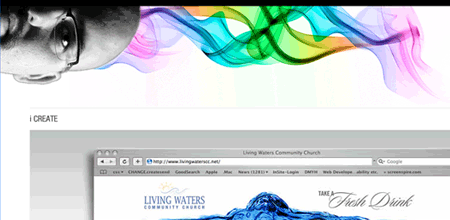
Digg Weekly
Favorites from the past 7 days
Design: 60 Elegant and Visually Appealing Designs
From the list-creating-masters of Smashing Magazine comes an entirely new list, this time with 60 “visually appealing and elegant designs”.
Programming: The top 10 dead (or dying) Computer Skills
While not directly related to design, most of us understand computers a bit more than our average friends, so I thought it might be interesting to know what is and isn’t needed anymore.
Up and Coming
Software – 10 Open Source Apps You Can’t Live Without
A nice collection of open source apps including the usual suspects Firefox and Open Office.
Design – 20 Killer Resources Every Good Web Designer Should See : May
Within the post are twenty resources from icons, to CSS, to Web 2.0 layer styles.
Design Dilemma
What would be your approach for finding a color scheme if you are color challenged?
WordPress Plugin Spotlight
The Devlounge Plugin Series is drawing to a close with the last post scheduled to be published Sunday. It has been quite a journey and a few people have e-mailed in saying that the series has been helpful. If you have yet to check out the series and are a WordPress user, please start with the introduction.
Using AJAX with your WordPress Plugin
This post was written as part of the How to Write a WordPress Plugin series.
More and more plugins are starting to use AJAX techniques. I personally don’t see a use for most cases of AJAX, but it may be necessary for your plugin to use AJAX to accomplish a task. This post will show you how to use AJAX with your WordPress plugin.
This post will be building on the last one where we added in a JavaScript and Stylesheet file.
Set Up a new PHP File
The Devlounge Plugin Series plugin has the following directory structure:
- devlounge-plugin-series
- devlounge-plugin-series.php (main plugin file)
- js
- devlounge-plugin-series.js.php
- css
- devlounge-plugin-series.css
- php
- dl-plugin-ajax.php (new php file for AJAX calls)
Notice I have a php extension at the end of my JavaScript file. I’ll explain the change a little later in this post.
I’ve created a new file and placed it in the php directory and have called it dl-plugin-ajax.php. I have placed the following code inside the file:
[php]
showComments();
}
?>
[/php]
This code is simple enough and is used solely for AJAX calls. It makes sure that config structure is present so we can call our class object dl_pluginSeries and reference other WordPress functions and variables. However, the showComments function hasn’t been created yet, so that is the next item on our agenda.
Set up the showComments function
The showComments function is placed inside our DevloungePluginSeries class:
[php]
function showComments() {
global $wpdb;
$devloungecomments = $wpdb->get_row(“SELECT count(comment_approved) comments_count FROM $wpdb->comments where comment_approved = ‘1’ group by comment_approved”, ARRAY_A);
echo “You have ” . $devloungecomments[‘comments_count’] . ” comments on your blog”;
}
[/php]
You might recognize this bit of code from the database interaction post. This function outputs the number of comments made on your blog.
Allow JavaScript to Know Where Your Blog is Located
One pesky thing about AJAX is that the external JavaScript file has no idea where your blog is installed. I get around this by adding a PHP extension to my included JavaScript file so that I can access WordPress functions. Within the addHeaderCode function, I changed the code from this:
[php]
if (function_exists(‘wp_enqueue_script’)) {
wp_enqueue_script(‘devlounge_plugin_series’, get_bloginfo(‘wpurl’) . ‘/wp-content/plugins/devlounge-plugin-series/js/devlounge-plugin-series.js’, array(‘prototype’), ‘0.1’);
}
[/php]
to this:
[php]
if (function_exists(‘wp_enqueue_script’)) {
wp_enqueue_script(‘devlounge_plugin_seriess’, get_bloginfo(‘wpurl’) . ‘/wp-content/plugins/devlounge-plugin-series/js/devlounge-plugin-series.js.php’, array(‘prototype’), ‘0.3’);
}
[/php]
The only thing I changed was the version number and added a PHP extension to the end of the JavaScript file.
Now JavaScript has a way of finding out where our blog is for AJAX calls. Let’s now set up the JavaScript.
Setting up the JavaScript
The purpose of this script (which is located in devlounge-plugin-series.js.php) is to find the blog’s URL, call the PHP file, and return a result to the user.
[javascript]
Event.observe(window, ‘load’, devloungePluginSeriesInit, false);
function devloungePluginSeriesInit() {
$(‘devlounge-link’).onclick = devloungePluginSeriesClick;
}
function devloungePluginSeriesClick(evt) {
var url = “/wp-content/plugins/devlounge-plugin-series/php/dl-plugin-ajax.php”;
var success = function(t){devloungePluginSeriesClickComplete(t);}
var myAjax = new Ajax.Request(url, {method:’post’, onSuccess:success});
return false;
}
function devloungePluginSeriesClickComplete(t) {
alert(t.responseText);
}
[/javascript]
The above code does the following (keep in mind we are using Prototype):
- Makes sure that config structure is present so we can access WordPress functions and variables.
- After the document has loaded, the devloungePluginSeriesInit is called.
- An event is set up for the link you added at the end of a post (line 7). If you forgot, now is the time to add the link in. Simply find a post and add this code to the bottom of it:
<a href="#" id="devlounge-link">Get the Number of Blog Comments</a> - The absolute URL to the PHP file is found (line 12).
- The PHP file is called (line 14).
- The response is outputted to the user (line 18).
The Result
This next step assumes you are at the post where the link was added. When clicking on the link “Get the Number of Blog Comments“, the script uses AJAX to call a function in the DevloungePluginSeries class and returns the result to you in the form of an alert box.
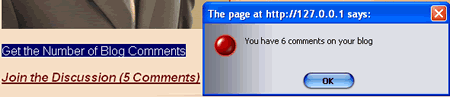
As you can see, I don’t have many comments on my local installation.
Conclusion
This post demonstrated a very bare-bones example of how to use AJAX (using Prototype) for your WordPress plugin. Please download the code used in this post: Devlounge Plugin Series Using Ajax.
Download the Code Used In This Post
For some related reading regarding Prototype, please check out the following links:
- Working With Events In Prototype
- Edit-in-Place with Ajax (uses Prototype)
Thank you for reading.
Using JavaScript and CSS with your WordPress Plugin
This post was written as part of the How to Write a WordPress Plugin series.
A lot of plugins nowadays are more reliant on JavaScript and Cascading Style Sheets. It is important to separate your JavaScript and CSS into separate files so that the plugin is easier to maintain. This portion of the series will cover how to load JavaScript and CSS files for your plugin.
Add your JavaScript
Your plugin might need to load the Prototype library or perhaps a custom script. This section will show you a few WordPress functions that will allow you to load scripts and avoid script conflicts.
The wp_register_script function
The wp_register_script function allows you to register your script for calling and can allow you to set pre-requisites. For example, if your script requires Prototype to have been loaded, you can specify this.
Here are the parameters for wp_register_script: wp_register_script( $handle, $src, $deps = array(), $ver = false )
- The handle is a unique name that you will use to reference your script later. This variable is required.
- The src is the absolute source to your JavaScript file. This variable is required.
- The deps variable is an array of dependencies. For example, if your script requires prototype, you would list it here. This variable is optional.
- The ver variable is a string version of the script. This variable is optional.
Say for example you had a script that was located at: http://yourdomain.com/wp-content/plugins/your-plugin-directory/js/script.js
Let’s make a few assumptions:
- You want to name the handle ‘my_script_handle’.
- Your script depends on the Prototype library.
- Your version is 1.0
You would likely call the function in your plugin code initialization or after a wp_head action:
[php]
wp_register_script(‘my_script_handle’, ‘http://yourdomain.com/wp-content/plugins/your-plugin-directory/js/script.js’, array(‘prototype’), ‘1.0’);
[/php]
The wp_enqueue_script Function
The wp_enqueue_script function does the same thing as wp_register_script except that the src variable is optional. If an src is provided, the enqueue function automatically registers the script for you, thus making the wp_register_script function somewhat unnecessary. However, the wp_register_script allows you to register your scripts manually so you can load all of your JavaScripts using one wp_enqueue_script function.
If we were to call the same custom script as before, it would be called like this:
[php]
wp_enqueue_script(‘my_script_handle’, ‘http://yourdomain.com/wp-content/plugins/your-plugin-directory/js/script.js’, array(‘prototype’), ‘1.0’);
[/php]
A JavaScript Example
For the Devlounge Plugin Series plugin, we’re going to add in a dummy JavaScript file that will be used in a later post. The purpose of this file is to demonstrate how to use the wp_enqueue_script function.
- This file is located at the following location: http://yourdomain.com/wp-content/plugins/devlounge-plugin-series/js/devlounge-plugin-series.js
- The file is dependent upon prototype.
- The version is 0.1
You might recall that in a previous post in this series, we added an action for wp_head. The function that was run as a result of that action was called addHeaderCode. Let’s modify this function to add in our new JavaScript:
[php]
function addHeaderCode() {
if (function_exists(‘wp_enqueue_script’)) {
wp_enqueue_script(‘devlounge_plugin_series’, get_bloginfo(‘wpurl’) . ‘/wp-content/plugins/devlounge-plugin-series/js/devlounge-plugin-series.js’, array(‘prototype’), ‘0.1’);
}
$devOptions = $this->getAdminOptions();
if ($devOptions[‘show_header’] == “false”) { return; }
?>
When you go to a post and view-source, the devlounge-plugin-series.js will have loaded as well as the Prototype library, which is conveniently included along with WordPress (versions 2.1.x and up I believe).
Loading in the Cascading Style Sheets
I’ve added a new style sheet to my styles directory. Here are my assumptions:
- This file is located at the following location: http://yourdomain.com/wp-content/plugins/devlounge-plugin-series/css/devlounge-plugin-series.css
- I specified an ID called #devlounge-link in the CSS file.
- You have added in the following code at the end of a post:
<a href="#" id="devlounge-link">Get the Number of Blog Comments</a>
In the style sheet file, I have added in the following ID:
[css]
#devlounge-link {
background-color:#006;
color: #FFF;
}
[/css]
Adding in the style sheet for the plugin is as simple as adding a line to the addHeaderCode function:
[php]
function addHeaderCode() {
echo ‘‘ . “\n”;
if (function_exists(‘wp_enqueue_script’)) {
wp_enqueue_script(‘devlounge_plugin_series’, get_bloginfo(‘wpurl’) . ‘/wp-content/plugins/devlounge-plugin-series/js/devlounge-plugin-series.js’, array(‘prototype’), ‘0.1’);
}
$devOptions = $this->getAdminOptions();
if ($devOptions[‘show_header’] == “false”) { return; }
?>

Conclusion
Within this post you learned how to allow your plugin to have external JavaScript and CSS files. As always, you can download the current version of the code and try it out yourself: Using JavaScript and CSS with your WordPress Plugin
Download the Code Used In This Post
For further reading, please check out these links: