Feature
Post

Category
Publishing

Help Me Pick: Vanilla vs. bbPress

I need a forum for an upcoming project, and I need to decide which one. I should’ve done this a long time ago, or at least a last week, but I’m having a hard time making up my mind.

Vanilla vs. bbPressThis is where you come in, dear reader! I’m asking you, which forum should I choose: Vanilla or bbPress?

I came to the conclusion that it would be one of these two forums after contemplating these criterias:

  1. It has to be opensource and free. Lots of good commercial solutions are out, like vBulletin. Not a money issue, more like a principle…
  2. I want a PHP forum running MySQL (or similar). This is because this is something I know something about, and most hosts provide decent service.
  3. I want the forum to be pretty lightweight. Basically, I’d rather add plugins for special features, than have everything crammed in there at once.
  4. The forum needs to be pretty easily customized. So phpBB is out, and so is PunBB. Not that these are necessarily bad forums but phpBB is pretty clunky, and PunBB won’t commit to CSS full-time until the next version.

After much consideration, I went with Vanilla or bbPress. Both are opensource, lightweight, and cool new players. Also, I like the tag support.

So which one?

Pros & Cons: Vanilla

Let’s start with the good:

  • Seems to have decent support and a fair amount of extensions.
  • Easily integrated with X, including WordPress, which I’ll be doing for a client soon enough.
  • Nice “new” forum layout to build from, always a good thing.
  • Good reputation online.

Then the bad:

  • Nobody I know have styled nor run it, so I only have second-hand opinions.
  • Documentation could perhaps be better?
  • The nice “new” forum layout could mean that I have to reshape everything whenever I want a more customary approach.
  • Not sure about the theming…

Pros & Cons: bbPress

Starting with the good things again:

  • Automattic, makers of WordPress, is backing bbPress, which feels safe.
  • I have run several bbPress forums for editorial groups and such. Small, but they’re working OK.
  • Very fast and lightweight!
  • Akismet spam protection, thank you very much!
  • Theming to be close to WordPress, which is familiar to me.

And the bad things:

  • It’s not in 1.0 yet. Who knows what will happen? Is it really ready for a public site? (Probably.)
  • Maybe too lightweight? Everything besides writing forum posts is a plugin, not even support for private forums. That’s not good.
  • I’ve had issues with upgrades when using the Swedish language. This is a problem that should be fixed, but it could theoretically be an issue until 1.0.
  • The admin interface is poor at best.

Help Me Pick: Vanilla or bbPress?

I’d like to hear what you guys think, since I’ll be spending some time playing with whichever it’ll be, and that means possible tutorials and more for Devlounge. Might even release a theme or two, we’ll see…

Which one and why? And remember, it’s either Vanilla or bbPress, nothing else I’m afraid.

Feature
Post

Category
General

Make A Unique, Multi-Layered Web Banner Using Photoshop

There are many ways to create effective web graphics, so I thought it would be fun this week to create a colorful, unique web site banner using multiple layers in Photoshop. Contrary to popular belief, manipulating layers in Photoshop is fast and easy, and can allow you to be ultra creative in the designs for web banners either for your own site or for a client project. I will create the banner step-by-step using several different photo elements of mine and show you the basics to help you get started experimenting with the power of multiple layers in Photoshop.

Procedure

First, open your ‘base image.’ In the example below, I used a scenery shot of a field with a hill and lots of green grass and trees, and also a foreground tree overhang for depth. When working with your base image, remember that you are going to be cropping the final image to fit into the constraints of a banner, which will vary depending upon the site you are designing for. In the example I will show you, the final finished banner size will be (in pixels) 600 wide, by 300 high, at 72 ppi. So, with this in mind, mentally select a focal point area in your base image, and after a few adjustments of this base image, and the addition of several graphic elements, we will crop it to the correct size.

For the next step you will simply go to the Layers Palette and drag this background layer down over the New Layer icon (at the bottom of the Layers Palette next to the Trash Can icon), which will duplicate your base image. At the top of the Layers Palette choose Multiply from the little pull down menu bar. This will darken your base image markedly, so be sure you started with an image that wasn’t dark to begin with, something that is a lighter or medium range in darkness and contrast should do fine. Example of the results of this step below:

Next, we want to start adding some graphic elements, so I opened up a photo of the Moon that I captured, and selected it with the circle marquee tool up at the very top left side of the vertical toolbar, and copied and pasted it onto my background image using CTRL+C followed by CTRL+V. At the top of the Layers Palette you will now see the Moon layer. I also clicked the pull down menu at the top of the Layers Palette, and selected Screen, which eliminates any of the black background my moon was sitting upon. It also helps it blend into the cloudy background a little, and remains a bit transparent so the tree branches show through it, giving a bit of ‘false depth’ to the image. Here is an example of this part of the procedure:

For the next step of our image creation here, we need to click on Layer>Merge Visible (this command is close to the bottom of the Layer drop down menu) so that we basically merge all three of the layers you have so far, in order to be able to apply a special effect from our Plug-ins. Once you have performed the Merge Visible command, you will see that there is now just one layer called Background. At this point, call up your Flood plug-in Filter>Flaming Pear>Flood, or anything else you may have available to make the effect of a glassy lake on your base image. Click OK once the settings of Flood are where you like them, and you should have an image that is like the one below:

Okay, we are getting very close to the end of this exercise, but I felt like this picture was still a bit plain, although it is coming along. I decided that it might look nice to plonk another graphic element in the mix, so I opened up a photo of a boat that I took some time ago, and just simply dragged that onto my nice background image. I made a few minor adjustments of the boat, such as Edit>Transform>Scale, to make it smaller, and I also moved it around until it was in a place that looked good to me. Here is a view of this step:

This looks all right, but the boat seems to be floating in space rather than on the lake I just created, so that must be remedied! What is nice about Photoshop, is that it lets you apply effects to each individual layer. In other words, I can add the Flood effect to the boat individually, and make it look like it ‘belongs’ on the water there, blending in. Making sure the boat layer is active or highlighted in the Layers Palette, click on Filter>Flaming Pear>Flood, and try to match up the reflection with the bottom of the boat, so that no space is between the reflection and the bottom of the boat. See the example below:

Once you click OK, the effect will apply to the boat, and will make it look like it belongs in the picture as the example:

We are nearly finished, we just need to crop the image to a more ‘banner-appropriate’ size, and then add some text. So, let us begin by cropping this large image to something more manageable for our project banner. First, click Layer>Merge Visible again, so we get all the layers merged together. Now, grab the Rectangular Marquee tool, the top left tool in your vertical toolbar, and drag it inside your picture taking a chunk of your image that includes the main elements like the Moon and the rowboat, plus some of the water. You will want to then click Image>Crop, and take a look at what your markedly more banner-sized image looks like now. See the image example:

My image turned out to be about 600 pixels wide by 315 pixels high. This size is fine for my Blogger format sites. You may need to experiment with the size for your particular application. Next we will add some text, and then you will be finished with a very nice, creative, and unique banner for your blog or for a web site.

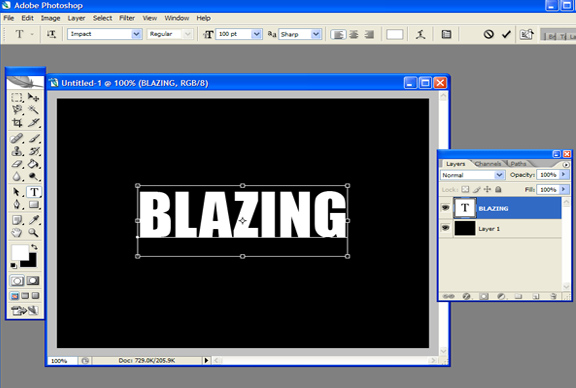
To complete this process, Click on your Text Tool in your vertical Toolbar. I chose a font called Poplar Std. which is a tall, blocky typeface. Type your title in the color you desire, and then apply a drop shadow effect to that type using the effects button located at the bottom of your Layers Palette, second from the left (looks like a black circle with a scripted “f” in it), and choose Drop Shadow. Click OK. The example turned out like this:

Now it is time to click Layer>Flatten Image to merge this new type layer with the rest of your design. Once you flatten the image, be sure to save it as a .jpg, and you are ready to upload it to your site. Here is the example of my final flattened image:

Wrapping Up

This might seem like a rather involved process just to design a web banner, but if you are interested in experimenting and working with layers in Photoshop, and creating something that is unique to your design elements and creativity, this is a very quick, fun little exercise to try out. This tutorial required the use of the Flaming Pear plug-in for Photoshop called Flood. However, you can do just as well without that step, and create any kind of composite layer image you like. The creativity part is literally at your fingertips!

Feature
Post

Category
Friday Focus

Friday Focus: 05/02/08

This week’s Friday Focus should be very interesting. But you have to actually visit these websites and experience them instead of just stare at their screenshots below.

Designs of the Week

We Bleed Design by Bryan Katzel

Visit the site first. Okay, are you breathless? Bryan Katzel’s portfolio takes the use of scrolling and background images to a whole new level. Everything is on one long page, but when you click on the navigation tabs to visit each section, you get an animated scrolling effect. The uniting element in the page, the 6 colorful rays, move through different “scenes” before reaching the desired destination. It’s almost like a loading screen in Flash-based websites, but instead Bryan uses layered images, which masks the rays to create different shapes using good old HTML, CSS, and JavaScript. An awesome feat.

Perhaps the only problem I have is that the screenshot is not as compelling to look at compared to the experience you will be rewarded with when you’re on the site itself.

Get Out And Play by Nokia

Another interactive website, this time by Nokia. It’s for their N-Gage platform, and I have to say, they really know what they’re doing. Because the site is Flash-based, it takes a while to load, but in the meantime visitors can play Block Breaker, with the bar shrinking until the loading completes. That’s compelling right there—you have to concentrate harder on the game as it becomes more difficult, so you stay on the site. When you enter, you get to watch a stop motion video of a snake formation. Then you play Block Breaker again, but this time using humans as the pieces. Finally, there’s another video of the longest snake formation slithering around the city. All very big, amazing “installations” put online.

There’s not much to be said about the literal appearance of Get Out And Play as a website, which might have you wondering why it’s here on Friday Focus, but design is not just about looks. It’s about coming up with a concept and conveying it in a certain way. That said, the website went for a realistic feel. It’s all about translating well-loved games like Snake and Block Breaker to the real world, which, with the help of stop motion animation, makes for a very quirky and casual feel.

Social Media Weekly

Design - The Role of Sketching in the Design Process
Sketching is an almost irreplaceable part of the design process. Or any conceptual process, really. This article explains five important uses for sketching.

Design - 16 awesome Aviary tutorials
Aviary is a very promising design suite running on Adobe Flash. These tutorials show what you can achieve with it, but you can also apply the same concepts on Adobe’s products like Photoshop.

Design - eXtreme Type Terminology
This is the first part of several in-depth lessons on typography. Do check out the rest of them, linked at the end of each article.

Programming - Getting Started with Ruby on Rails
The April 22 edition of A List Apart focuses on development using Ruby on Rails and this is one of those articles. For everyone who is curious just how easy to learn RoR, this article is a must-read.

Programming - 51+ Best of jQuery Tutorials and Examples
I fancy jQuery more than any other JavaScript library because it’s built so intuitively. This article should be a good starting point for everyone who wants to learn it.