Feature
Post

Category
Design

Favorite Five: Free Dingbats

Not only do I love the word dingbat, I’ve been known to spend hours going through dozens of dingbat font lists, constantly amazed by the quality of some of these ornaments and characters. Today, I want to share my top five favorite free dingbat fonts of the moment. Most of these dingbats look great at smaller sizes, so they’re perfect for creating your own icons- but you can also use them at large sizes for posters, etc. Enjoy:

Faux Snow
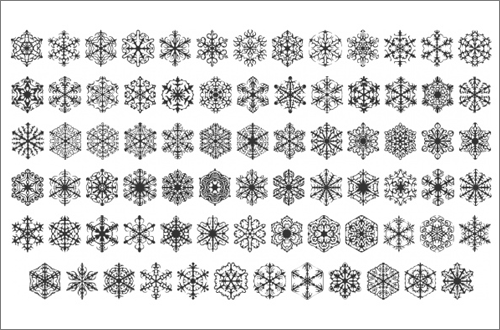
dingbat-fauxsnow

Because it’s December tomorrow, and winter is my favorite time of year, these snowflake dingbats top my list. Look closely, and marvel at the intricacy of these snowflakes. An @font-face kit is also available, in case you want to use it to pepper your website without having to create graphics.

Download Faux Snow now »

Warning Tables

dingbat-warningtable

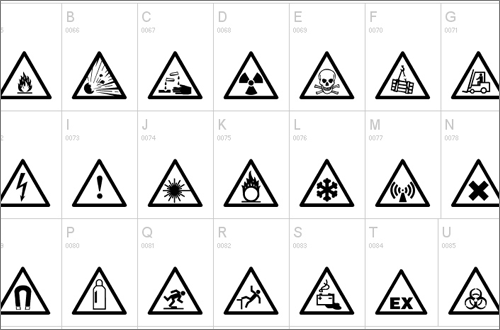
There’s always a place for warning signs, which makes having these Warning Table dingbats installed a great idea for any designer. Well-crafted symbols of everything from POISON to CAUTION to Pedestrian Crossings are included.

Download Warning Tables now »

Baby Dingbats

dingbat-baby

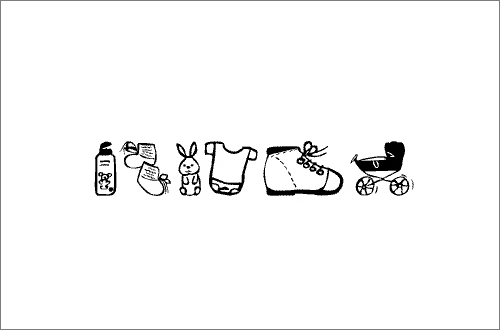
Great for child and parenting websites and projects, these baby dingbats will add a touch of whimsy to your design without having to use Comic Sans.

Download Baby Dingbats now »

WC Sold Out

dingbat-wcsoldout

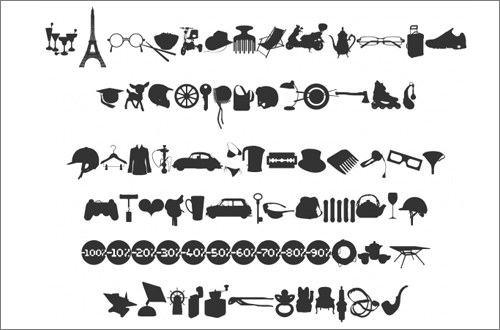
‘Tis the season for shopping, so it won’t be difficult to find use for these retail-related dingbats. Included are some nicely rendered objects such as a coffee grinder, a razor blade, various styles of eyewear- even a mini Eiffel Tower.

Download WC Sold Out now »

Siruca Pictograms

dingbat-sirucapictograms

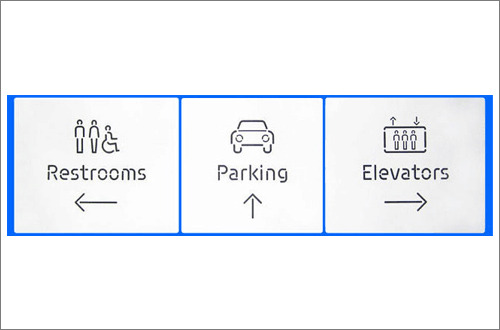
Once again, I’ve saved the best for last- and I urge you to have a look at the entire character map of Siruca Pictograms because they’re so well-made. They’re meant to be used, as in the example below, with the Siruca stencil font, also by the same author.

Download Siruca Pictograms now »

Which dingbats do you love?
Feature
Post

Category
Design

Do you use PNGs?

For the longest time, I stayed away from using PNGs (Portable Network Graphics) because of the lack of support for it on Internet Explorer 6. Supposedly superior to GIFs- offering smaller file sizes and support for more than 256 colors- it was frustrating to not be able to use PNGs and many others agreed with me.

As we near the end of 2009 now, I wonder: is it safe to use PNGs?

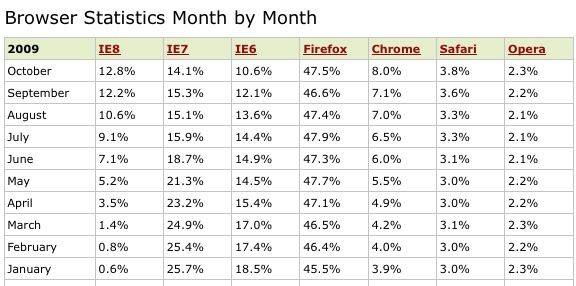
Because IE6 doesn’t support it, the first question has to be: how many people are still using IE6? Here’s a recent screenshot from w3schools,

browserstats-2009

that shows 10.6% of IE6 users last month. The number is certainly dwindling, down from 18.5% at the beginning of the year- but is it small enough to “forget” these people?

Not that you have to forget them: we can:

Either of these methods might very well work for you, but they’re still added steps and added code, just to be able to use PNGs.

Designers, is it time to go all-out with the PNGs? Do you use them exclusively or in conjunction with GIFs and JPEGs in your designs?

Feature
Post

Category
Design

How to Add Social Media Buttons to Your WordPress Theme

That WordPress plug-ins such as Add to Any and Sociable are constantly among the most popular WordPress plug-ins in their directory is proof that most people like to add Social Media buttons to their blogs. Not surprising to me, of course- I’m one of those that loves to Add to Delicious, Share on Facebook, and Tweet This directly from an interesting post I find.

If you author WordPress Themes, you might want to add Social Media buttons to your Themes yourself. Here’s a quick and easy way to do it:

First, get some buttons. Design them yourself, or download some free designs. There are lots of beautiful ones out there: try here or here.

Once you have your collection of buttons, create some code to add to your WordPress Theme single.php templates (and anywhere else you want the buttons to be). Here’s an example:

Like this post? <a href="http://del.icio.us/post?v=4&noui&jump=close&url=<?php the_permalink();?>&title=<?php the_title();?>"><img src="<?php bloginfo('template_directory'); ?>/images/delicious.png" alt="Bookmark on Delicious" /></a>&nbsp;<a href="http://twitter.com/home?status=Currently reading <?php the_permalink(); ?>"><img src="<?php bloginfo('template_directory'); ?>/images/twitter.png" alt="Send to Twitter" /></a>&nbsp;<a href="http://www.stumbleupon.com/submit?url=<?php the_permalink(); ?>"><img src="<?php bloginfo('template_directory'); ?>/images/stumbleupon.png" alt="Stumble it" /></a>&nbsp;<a href="http://digg.com/submit?phase=2&url= <?php the_permalink();?>&title=<?php the_title();?>"><img src="<?php bloginfo('template_directory'); ?>/images/digg.png" alt="Digg This" /></a>

Does it look confusing? Let’s break down the Delicious button:

<a href="http://del.icio.us/post?v=4&noui&jump=close&url=<?php the_permalink();?>&title=<?php the_title();?>"><img src="<?php bloginfo('template_directory'); ?>/images/delicious.png" alt="Bookmark on Delicious" /></a>

The link grabs the post’s permalink and title, and sends it to Delicious. It looks for a Delicious button in the images/ directory of your Theme.

You will, of course, want to edit the code to point to your button images and/or refer to completely different Social Networks.

Why add Social Media buttons to your Theme at all?

The users of your theme don’t need to install a plug-in. Not everyone knows how to install WordPress plug-ins, and many simply don’t care to.

You can style them your way. You’ve put a lot of work into making your Theme look a certain way, so styling the Social Media buttons yourself makes sense.

It’s a “feature”. In the description and/or Read Me of your finished Theme, make sure to mention that you have Social Media buttons built-in. But also be sure to make it easy for users to disable the buttons if they don’t want to use them.

Do you add Social Media buttons to your Themes?

Feature
Post

Category
Friday Focus

Friday Focus 11/20/09: You’re My Type

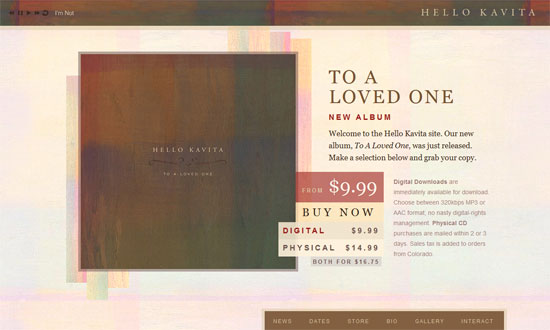
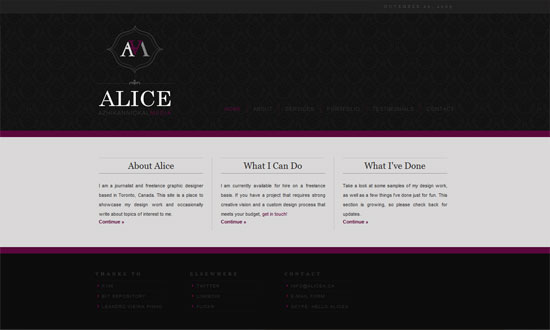
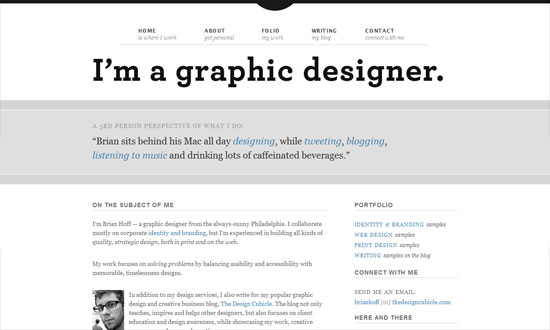
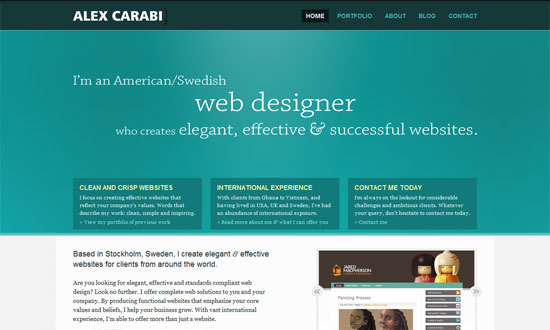
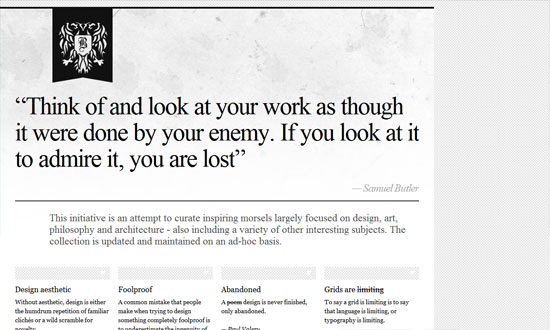
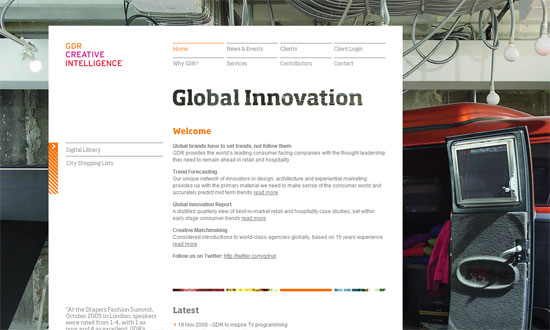
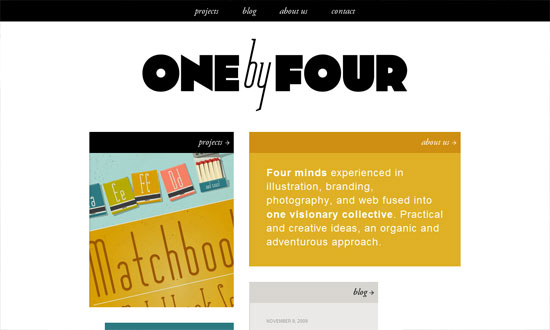
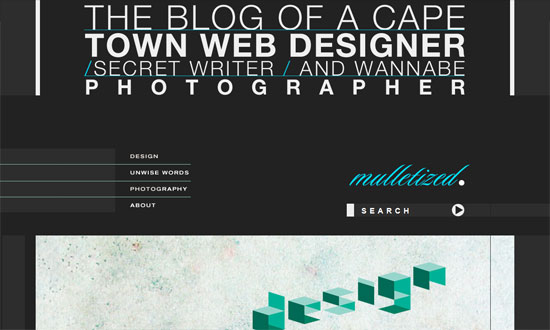
We love our fonts around these parts, so here’s another batch for this week’s Friday Focus featuring excellent typography, and nothing but.

Designs of the Week

Hello Kavita

Alice Azhikannickal

Brian Hoff

Alex Carabi

Inspire - Bora Nikolic

Global Design Resources

One by Four Studio

Mulletized

Less Code

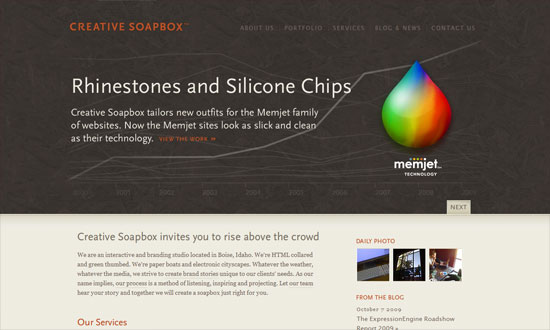
Creative Soapbox

Social Media Weekly

DesignReadability
“In the early years of a child’s reading development, the attainment of mechanical skills is gained initially with the aid of a finger to help left to right progression and accurate return sweeps from the end of one line on to the beginning of the next. By reminding ourselves of what were the perfunctory difficulties of childhood reading, we give ourselves an insight into the fundamental mechanics and principles of setting text.”

ProgrammingWhat Beautiful HTML looks like
For your desktop wallpaper?

UsabilityInexpensive Ways to Target Problem Areas
“In the past few years, technology has become available that has brought the cost and complexity of user testing down to a level where it is available for anyone. In addition, it allows designers to be exposed to users, in their native environment, not a sterile lab across town. You can run a test in only a week for less than a few hundred dollars.”

Feature
Post

Category
Design

Favorite Five: Free Serif Fonts

While I will always love the sparkling clean lines of a good sans-serif, many times nothing but a serif will do. Serif fonts are also known as Roman fonts, because apparently these letterforms were first carved into stone in Roman antiquity- something I just learned from this fascinating entry on Wikipedia. Today, I’m featuring five of them- and they’re all free!

Chunk

chunk-five

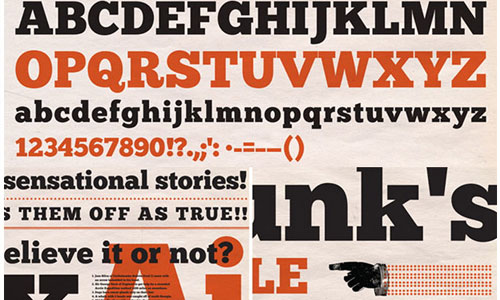
I’ve been in love with this font for quite a while now- and, really, can you blame me? Chunk is a gorgeous slab serif font that’s absolutely perfect for attention-grabbing headlines. You can also use it with @font-face, with a kit you can download here. Download ChunkFive now »

Sovereign

sovereign

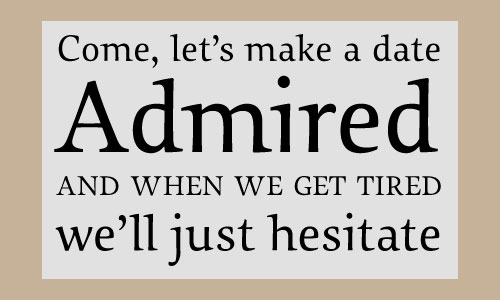
A modern-style serif, Sovereign is beautifully rendered with just the right curves. I especially like its capital letters. Download Sovereign now: Mac / PC PS / PC TT.

GriffosFont

griffos-font

Serifs are great for classical design, and by far one of the nicest classic serif fonts is Griffos. I can almost imagine it carved onto a stone in Roman antiquity- can’t you? An @font-face kit is also available. Download GriffosFont now »

Sorts Mill Goudy

sorts-mill-goudy

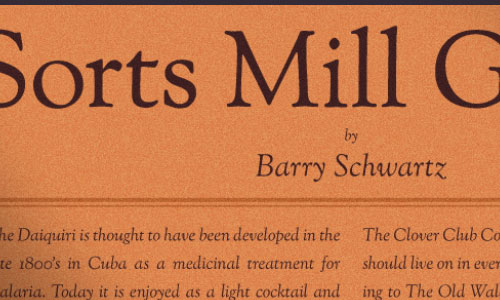
I oohed and ahhed a bit when I first discovered Sorts Mill Goudy, a font so beautiful I couldn’t believe I could have it for free! Among its features are small capitals, superscripts and subscripts, fractions and ligatures. Download Sorts Mill Goudy now »

Mido

mido

Mido falls right smack between a regular serif and a bold slab type- it’s nice and thick, without being too thick, making it good at even small sizes. A good choice if you’re looking for an @font-face serif font for your site. Download Mido now, or get the @font-face kit »

What’s your favorite serif font?

Feature
Post

Category
Friday Focus

Friday Focus 11/13/09: Illustrious Illustrations

Another dose of great sites with great illustrations that carry the design. Happy Friday the 13th Focus!

Designs of the Week

Blue Acorn

The blue and brown looks stunning. Everything’s so tidy and well-arranged.

Mark Forrester

This design conveys playfulness but in a subtle way. Beautiful borders on the boxes.

Piipe

I adore the navigation. And the Twitter bird floating on the log!

Sanat Rath

I like how the designer used both the carousel and parallax effects on one page.

Attack of the Web

Would’ve liked a bit more of the comic book look in other parts of the site, but I enjoy the concept.

The Shark Lab Aquarium and Research Facility, Mossel Bay

Fantastic concept and detail.

Logo Realty Associates

Beautiful use of classic illustrations to support that warm, homey look.

Mutant Labs

Chalkboard effect!

GANDR Web

A fun way to illustrate the “refresh” services they’re offering.

Social Media Weekly

DesignWeb Typography: Font Embedding Services

ProgrammingIs HTML5 good for application developers?

TypographyLegibility

Feature
Post

Category
Design

5 Tips for Free WordPress Theme Authors

Many web designers and developers like to create free WordPress themes. It’s great for your portfolio, offers good practice, and- perhaps best of all- lets you flex your creative muscles without all the limitations a client project has. Here are five things to keep in mind when creating your free WordPress theme:

Use the Checklist.

I’ve capitalized “Checklist” on purpose here- it’s the Theme Development Checklist found in the Codex that I’m talking about, and the truth is that I regularly refer to this list even when I’m creating custom themes that I won’t be releasing to the public. It’s always good practice to use the Checklist, whether or not you’re submitting your theme to the official WordPress theme repository.

Try to cover all bases.

As you create your free Theme, always keep in mind that you want a Theme that will be as useful as possible to as many people as possible. You’re releasing it to the public, after all. For instance, you may not use WordPress’ Calendar widget, but many people do- so make sure your Theme supports as many elements as possible.

Think different.

There are hundreds, maybe thousands, of Themes out there. Make yours stand out from the crowd. Look through free Theme directories, or visit discussion boards to find out what people are looking for. And don’t make a copy of a premium Theme and release it for free, creating a “knock-off”- that’s just bad form.

Consider creating a Theme Options page.

People love having options. Make it easy on your users to customize or personalize your Theme by creating and including an Options page. Don’t know where to start? Check out this easy tutorial, or this more advanced one.

Include a good Read Me.

In the zipped file of your Theme, have a Read Me text file with all the pertinent information about your Theme. It’s always good to have simple “How to Install this Theme” instructions, and include more specific details about the Theme, you the author, and links to where they can get more information and/or support.

edit: One more thing: Localization (or Internationalization) of your WordPress Theme, to make sure it can be translated and adapted to other languages. See: How to make a translatable WordPress theme, more info at the Codex on Translating WordPress, and this summary of I18n (also at the Codex). Thanks to commenters Calitoe and Tenach for the heads-up!

Do you create free WordPress Themes?

Feature
Post

Category
Friday Focus

Friday Focus 11/06/09: Playing with Transparency

This week on Friday Focus: another roundup of sites that play the transparency card very well.

Designs of the Week

Bieh

I love a good freeform layout. It does get more organized in the inside pages, though, so best of both worlds!

Ian James Cox

The translucent effects are so subtle, it makes for an elegant design.

Joshua Schoenaker

Lots of great things going on here: how the portfolio items that aren’t in focus are darkened, the pull-out panel that displays the designers skillset, and the overall edgy look for the site.

Anton Peck

Custom type and lovely art both go a long way for this site!

Able Maritime Yacht Insurance

The not so subtle way the content area fades into the background is stunning to look at. But the boat images need improvement, ironically in the transparency department. Still, a gorgeous site.

Social Media Weekly

DesignThe Future of Interface Design

ProgrammingThe 3 Basic Rules for Writing HTML

Feature
Post

Category
Design

Favorite Five: Free WordPress News Themes

I’m mostly a minimalist kinda gal, but when you have a particularly content-heavy website, it’s best to take a page from the online newspapers when it comes to layout choices. These five WordPress themes, for example, are perfect for when you want to show a lot of information at once, without making your head hurt. Also? They’re free.

News CMS

wpnews-newscms

This tops my list, not only for being the cleanest one here, but because it’s beautifully made- and I speak as a WordPress theme designer. You will need to register to download it (registration is free), and it requires some plug-ins (included in the download), but all that’s worth it. It’s a breeze to set up as well, as you can see from the online Read Me.
Download News CMS Theme »

Hamasaki

wpnews-hamasaki

Here’s another theme that looks like it shouldn’t be free, but is. A smooth grid-based layout with beautiful little touches here and there, Hamasaki is subtle and never detracts from the most important thing- your content. Includes a contact page as well (yay!), theme options, and some nice ad-ready spaces.
Download Hamasaki Theme »

Small Magazine

wpnews-smallmag

It’s called Small Magazine, but this theme looks like it could handle even the heaviest content, with its wonderful use of columns and white space. Requires some plug-ins and a bit of customization, but well-documented.
Download Small Magazine Theme »

Rebel Magazine

wpnews-rebel

Another gorgeous one, Rebel features two columns for a more streamlined look, with banner ad-ready spaces and widget support. A little easier to use than the others, I think I like this one precisely because it’s simpler and thus quicker to customize.
Download Rebel Magazine Theme »

The Morning After

wpnews-tma

This one’s been around for a while, and it’s still one of the best WordPress themes I’ve ever seen- free or “premium”! If you’re running a WordPress-powered news site, you must check out The Morning After: it’s feature-rich, including things like automatic thumbnail generation, and an easy way of doing “featured” items, among others.
Download The Morning After Theme »

What’s your favorite WordPress news-themed theme?

Feature
Post

Category
Design

Best practices for using line-height

All designers know the importance of white space- and often, the difference between a good design and a great design is manipulating the white space on a page, especially when you’re dealing with large blocks of text, such as on a website. Which is why knowing how to set your text leading using the CSS property line-height is a good idea.

First, you need to know what property values you can choose from. These are:

  • normal : the default line height.
  • number value : a number to be multiplied with your current font size. For example: 1.2 or 1.3.
  • length value : a specific line height, such as px, pt, em.
  • percentage : a percentage of your current font size.
  • inherit : wherein the value will be inherited from the element’s parent element.

As you can see, font size is very important when it comes to line height. If, for example, you do this:

body { font-size: 12px; line-height: 140%; }
h1 { font-size: 24px; }

The browser will calculate the body font size (12) multiplied by the line height (140%) and give you a line-height of 16.8. This is fine for your fonts at sizes 12px, but what happens to your h1, which is at 24px? It inherits the 16.8 line-height. As a result, your h1 elements will have line spacing that’s too tight.

You can, of course, fix this by specifying a line-height for your h1 element as well. Like so:

body { font-size: 12px; line-height: 140%; }
h1 { font-size: 24px; line-height: 125%; }

But then you would have to do this for all the affected elements on your page. This is what happens when you use a length value or a percentage.

Now here’s what’s better: using the number value,

body { font-size: 12px; line-height: 1.2; }
h1 { font-size: 24px; }

Because the number value calculates line-height relative to each element’s font size, you need only define it once. In the example above, the browser will multiply 12 by 1.4, giving you a line-height of 16.8 (as in the previous example), and for your h1 elements it’ll multiply 24 by 1.4 as well, giving them line-heights of 33.6, which is a little loose for my taste, but much better than squishing up your lines.

Finally, here’s the CSS shorthand for defining line-heights:

font: font-size/line-height font-family;

How do you define your line-heights?