Feature
Post

Category
Code

Constructing a WordPress Plugin User’s Panel

How To Write a WordPress Plugin Series

This post was written as part of the How to Write a WordPress Plugin series.

There will be situations where you will have a main administrative panel, but would like individual users to set their own preferences. In the case of the Devlounge Plugin Series, we added an option for text to be added in at the end of each post. However, what if a logged-in user doesn't want to see this text? Why not give them the option without affecting all of the other users?

This post will go over the steps to add in your own User's Administration Panel.

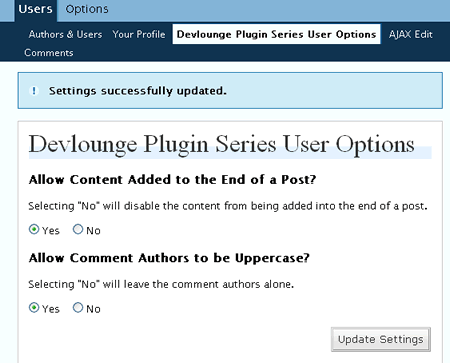
Devlounge Plugin Series User’s Panel

Name Your User Options

PHP:
  1. class DevloungePluginSeries {
  2.         var $adminOptionsName = "DevloungePluginSeriesAdminOptions";
  3.         var $adminUsersName = "DevloungePluginSeriesAdminUsersOptions";

Line 3 shows where I added in the member variable called adminUsersName . I gave this variable the long and unique name of DevloungePluginSeriesAdminUsersOptions.

Set Your the Default User Options

You're going to need a place to initialize your user options, especially when a user first activates your plugin. However, these options should also work outside of the admin panel where users may or may not be logged in.

Here's the function I inserted in the DevloungePluginSeries class:

PHP:
  1. //Returns an array of user options
  2.         function getUserOptions() {
  3.             global $user_email;
  4.             if (empty($user_email)) {
  5.                 get_currentuserinfo();
  6.             }
  7.             if (empty($user_email)) { return ''; }
  8.             $devOptions = get_option($this->adminUsersName);
  9.             if (!isset($devOptions)) {
  10.                 $devOptions = array();
  11.             }
  12.             if (empty($devOptions[$user_email])) {
  13.                 $devOptions[$user_email] = 'true,true';
  14.                 update_option($this->adminUsersName, $devOptions);
  15.             }   
  16.             return $devOptions;
  17.         }

What this function does is:

  • Checks to see if a user is logged in (lines 3 - 7). This is easily determined by checking to see if the user_email variable is set.
  • Attempts to find previous options that may have been stored in the database (line 8).
  • If options aren't found, defaults are assigned (lines 9-15)
  • The options are returned for your use (line 16).

Initialize the Admin User Options

The getUserOptions can be called at anytime to retrieve the admin user options. However, what about when the plugin is first installed (er, activated)? There should be some kind of function that is called that also retrieves the user options. I added the following function into the init function:

PHP:
  1. function init() {
  2.             $this->getAdminOptions();
  3.             $this->getUserOptions();
  4.         }

Line 3 calls the new function getUserOptions. Since there is already an action added that calls the init function, no extra steps are necessary.

How the Admin Panel and User Panel Will Work Together

You will recall from the last post about setting up an admin panel that the WordPress admin could set the content at the end of the post, whether code was shown in the header, and whether an author's name was uppercase in the comments. The user's panel allows users who aren't admin to be able to specify whether they want these options or not.

We're going to allow the user to decide if they:

  • Want content at the end of the post to show (only if the admin has this enabled already).
  • Wants the comment authors to be uppercase (only if the admin has this enabled already).

Set up the User's Panel Function

The first thing we want to do is set up a function that will actually print out the user's panel. The function's name will be printAdminUsersPage. This next bit of code will read in the options we specified earlier and check to see if any post options have been submitted. All the code in this section is assumed to be within the printAdminUsersPage function.

PHP:
  1. //Prints out the admin page
  2.                 function printAdminUsersPage() {
  3.                     global $user_email;
  4.                     if (empty($user_email)) {
  5.                         get_currentuserinfo();
  6.                     }
  7.                     $devOptions = $this->getUserOptions();
  8.                    
  9.                     //Save the updated options to the database
  10.                     if (isset($_POST['update_devloungePluginSeriesSettings']) && isset($_POST['devloungeAddContent']) && isset($_POST['devloungeAuthor'])) {
  11.                         if (isset($user_email)) {
  12.                             $devOptions[$user_email] = $_POST['devloungeAddContent'] . "," . $_POST['devloungeAuthor'];
  13.                             ?>
  14.                                 <div class="updated"><p><strong>Settings successfully updated.</strong></p></div>
  15.                             <?php
  16.                             update_option($this->adminUsersName, $devOptions);
  17.                         }
  18.                     }
  19.                     //Get the author options
  20.                     $devOptions = $devOptions[$user_email];
  21.                     $devOptions = explode(",", $devOptions);
  22.                     if (sizeof($devOptions)>= 2) {
  23.                         $content = $devOptions[0];
  24.                         $author = $devOptions[1];
  25.                     }
  26.                     ?>

The above code:

  • Retrieves the user options (line 7)
  • Saved post data (if available) to the database (lines 9 - 18)
  • Reads in comma-separated variables for the user.(lines 19-25)

The next bit of code will display the HTML form that is necessary for the user's panel. All the code is doing is displaying the form elements and reading in options that were already retrieved.

PHP:
  1. <div class=wrap>
  2. <form method="post" action="<?php echo $_SERVER["REQUEST_URI"]; ?>">
  3. <h2>Devlounge Plugin Series User Options</h2>
  4. <h3>Allow Content Added to the End of a Post?</h3>
  5. <p>Selecting "No" will disable the content from being added into the end of a post.</p>
  6. <p><label for="devloungeAddContent_yes"><input type="radio" id="devloungeAddContent_yes" name="devloungeAddContent" value="true" <?php if ($content == "true") { _e('checked="checked"', "DevloungePluginSeries"); }?> /> Yes</label>&nbsp;&nbsp;&nbsp;&nbsp;<label for="devloungeAddContent_no"><input type="radio" id="devloungeAddContent_no" name="devloungeAddContent" value="false" <?php if ($content == "false") { _e('checked="checked"', "DevloungePluginSeries"); }?>/> No</label></p>
  7. <h3>Allow Comment Authors to be Uppercase?</h3>
  8. <p>Selecting "No" will leave the comment authors alone.</p>
  9. <p><label for="devloungeAuthor_yes"><input type="radio" id="devloungeAuthor_yes" name="devloungeAuthor" value="true" <?php if ($author == "true") { _e('checked="checked"', "DevloungePluginSeries"); }?> /> Yes</label>&nbsp;&nbsp;&nbsp;&nbsp;<label for="devloungeAuthor_no"><input type="radio" id="devloungeAuthor_no" name="devloungeAuthor" value="false" <?php if ($author == "false") { _e('checked="checked"', "DevloungePluginSeries"); }?>/> No</label></p>
  10. <div class="submit">
  11. <input type="submit" name="update_devloungePluginSeriesSettings" value="<?php _e('Update Settings', 'DevloungePluginSeries') ?>" /></div>
  12. </form>
  13.  </div>
  14.                     <?php
  15.                 }//End function printAdminUsersPage()

Set up the User's Panel Action

While setting up the administrative panel, we specified a function called DevloungePluginSeries_ap that helped initialize the admin panel. We're going to piggy back on this function in order to add in our user's panel.

PHP:
  1. //Initialize the admin and users panel
  2. if (!function_exists("DevloungePluginSeries_ap")) {
  3.     function DevloungePluginSeries_ap() {
  4.         global $dl_pluginSeries;
  5.         if (!isset($dl_pluginSeries)) {
  6.             return;
  7.         }
  8.         if (function_exists('add_options_page')) {
  9.     add_options_page('Devlounge Plugin Series', 'Devlounge Plugin Series', 9, basename(__FILE__), array(&$dl_pluginSeries, 'printAdminPage'));
  10.         }
  11.         if (function_exists('add_submenu_page')) {
  12.             add_submenu_page('profile.php', "Devlounge Plugin Series User Options","Devlounge Plugin Series User Options", 0, basename(__FILE__), array(&$dl_pluginSeries, 'printAdminUsersPage'));
  13.         }
  14.     }   
  15. }

On line 12, you can see a line of code that:

  • Adds a sub-menu to the profile.php page.
  • Let users with a user's level greater than or equal to zero access to the user's panel.
  • Calls our printAdminUsersPage function.

The access level (in this case a 0) is described in more detail at the Users Levels page in the WordPress codex.

Conclusion

We now have an user's panel that allows users their own control whether certain content is shown or actions performed. The code to influence the behavior of the plugin was added to the downloadable example, but was not described here. You can download the current version of the Devlounge Plugin Series plugin regarding a user's panel.

If you were to test out the plugin code above, the admin could specify the overall behavior, but a user could override that behavior depending on the settings specified.

Download the Code Used In This Post

For further reading, please check out these links:

  1. By Blogging Tips posted on May 19, 2007 at 1:03 pm
    Want an avatar? Get a gravatar! • Link to this comment!

    GREAT WORK!!!!
    Please, If you have an offline version of this series can you provide it in a ZIP file….

  2. By Ronald Huereca posted on May 19, 2007 at 1:08 pm
    Want an avatar? Get a gravatar! • Link to this comment!

    Blogging Tips,

    All available code can be downloaded under the conclusion section if applicable. It’s there. I swear it is. :)

    Edit - I’ve added in an notice for the downloadable code so it is easier to find.

  3. By Pete posted on April 1, 2008 at 4:46 pm
    Want an avatar? Get a gravatar! • Link to this comment!

    How do you insert a link in the Content Box? When I try, WP assumes it is a relative link and inserts a bunch of stuff before it.

  4. TrackbackHowTos zu Erstellung eines Wordpress Plugins | Bloganbieter.de BlogHot tipp: dodavanje kontakt forme « 3kolonePlugin für Wordpress Bastelanleitung - D-SIGN Weblog

    Your words are your own, so be nice and helpful if you can. If this is the first time you're posting a comment, it might go into moderation. Don't worry, it's not lost, so there's no need to repost it! We accept clean XHTML in comments, but don't overdo it please.