Feature
Post

Category
General

Text Treatments: Fire and Type

There are lots of tutorials floating around that show you how to “set your typefaces on fire”, but this quick little tip using Adobe Photoshop is one that is really fast and effective for you to experiment with, and make your blazing impression on any text that suits your fancy. Try this quick text treatment next time you are looking for a speedy, easy way to have your website banner burst into flames…

Steps

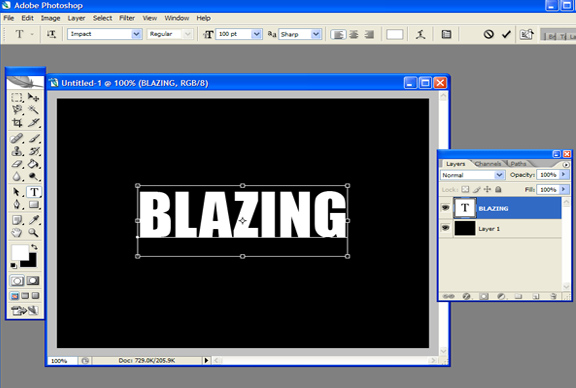
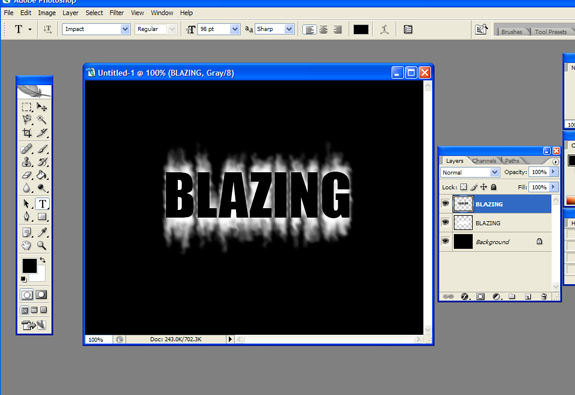
Open up a new document in Photoshop. I made mine 8 inches wide by 6 inches high, 72 ppi, Grayscale, and the Background should be White. Make sure your default colors are Black foreground color, white background color (press D on your keyboard to reset this default color scheme). Fill the transparent document you just opened by clicking ALT>Backspace (PC). Next, click on the Text tool in your toolbar, and set the default colors to the opposite scheme, white over black, by pressing the X key on your keyboard. You are going to type something in white now on your black background. Choose a nice, bold, blocky typeface, and set the size to about 100 point. See the example shown:

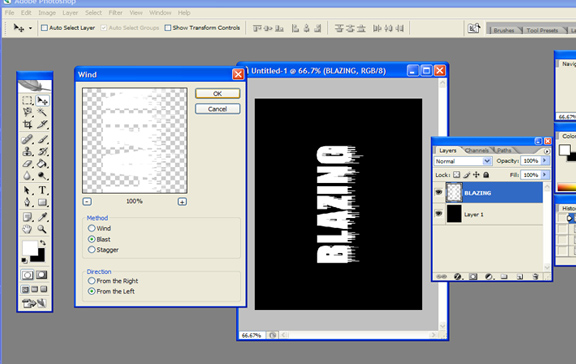
The next step is to rasterize the type by clicking Layer>Rasterize>Type. After that, rotate the canvas counter clockwise using: Image>Rotate Canvas>90 degrees counter clockwise, then apply the first effect filter for this lesson which is as follows: Filter>Stylize>Wind>Blast from Left. Repeat this step one more time to lengthen the blast a little. See example:

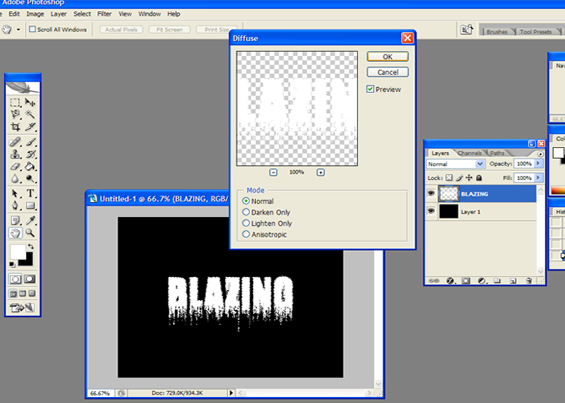
Now you will need to rotate the image 180 degrees: Image>Rotate>180 degrees, so you can blow the wind effect on the other side as well by using: Filter>Stylize>Wind>Blast from Left. When finished, rotate the canvas back to normal by: Image>Rotate>90 degrees counter clockwise. It is time to add some more effects to your type. First, use this: Filter>Stylize>Diffuse>Normal. See example:

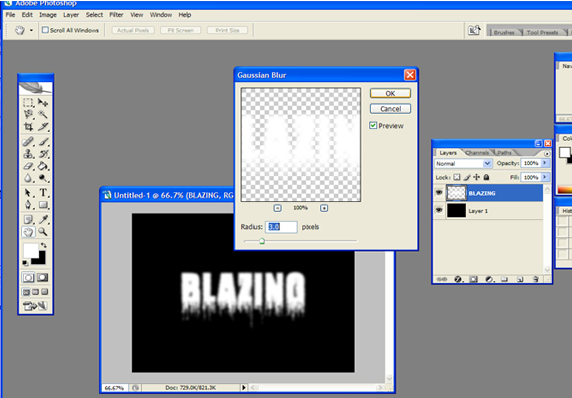
Then, apply the next effect as follows: Filter>Blur>Gaussian>Adjust slider to 3. Example:

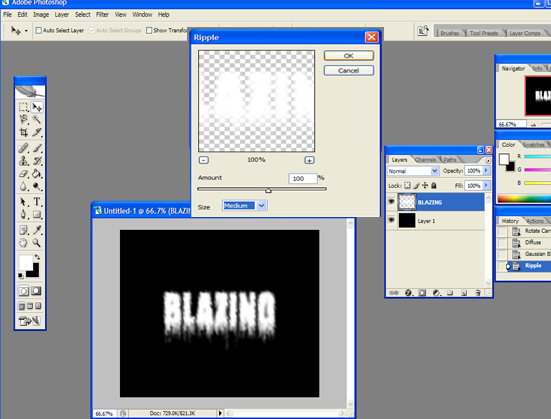
One more effect and we are nearly finished: Filter>Distort>Ripple>100 percent>Medium. See example:

Now that we are done with the effects, let us type the word over again in black (switch default colors back to black). Position this type layer over the original one that is now distorted and rasterize the type: Layer>Rasterize>Type. After you rasterize this layer, it’s time to click Layer>Flatten Image.

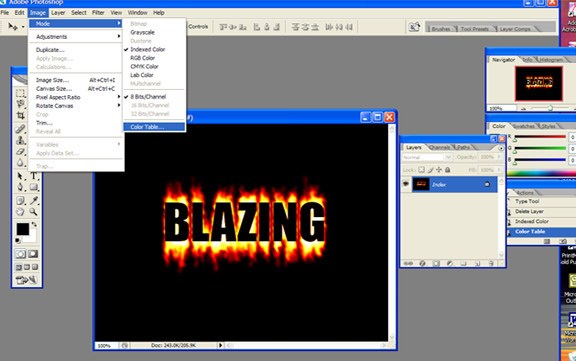
So, you are probably thinking “what happened to flaming type?” Well, here are the final steps to a really hot effect: Click Image>Mode>Indexed Color. Nothing much will happen in that step, however, the next one: Image>Mode>Color Table, and choose Black Body from the drop down menu. Now you should see the colors of fire all around your type, concentrated at the top and bottom. See example:

For your final step in this process, you probably should crop this and convert this file to RGB ready for web use. Again, click Image>Mode>RGB, and save your file, and you’ll have a super fun little text effect to heat up your site! Here’s the cropped final:

Wrapping Up

Obviously there are many techniques for making this type of flaming text treatment; I just thought this was a good “quick and dirty” version for you to try out in a jiffy. You can also do a lot more experimenting with this, such as make the text a different color all together, such as blue or yellow, and add some effects to that like a drop shadow or outer/inner glow. You can experiment with many, many different base fonts as well; I just used a very plain, bold font here called Impact (you should have it). There are many other choices. Photoshop is very flexible, so you have a lot of options open to you!

Feature
Post

Category
General

Make A Unique, Multi-Layered Web Banner Using Photoshop

There are many ways to create effective web graphics, so I thought it would be fun this week to create a colorful, unique web site banner using multiple layers in Photoshop. Contrary to popular belief, manipulating layers in Photoshop is fast and easy, and can allow you to be ultra creative in the designs for web banners either for your own site or for a client project. I will create the banner step-by-step using several different photo elements of mine and show you the basics to help you get started experimenting with the power of multiple layers in Photoshop.

Procedure

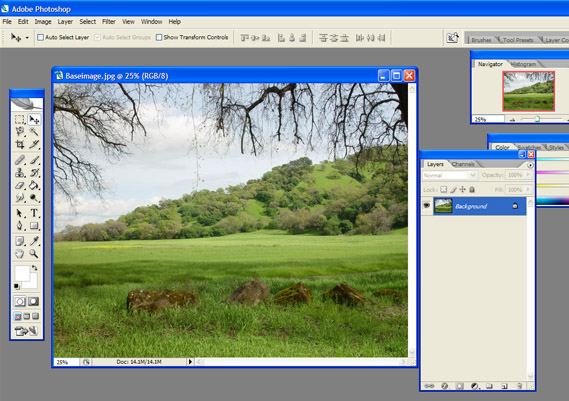
First, open your ‘base image.’ In the example below, I used a scenery shot of a field with a hill and lots of green grass and trees, and also a foreground tree overhang for depth. When working with your base image, remember that you are going to be cropping the final image to fit into the constraints of a banner, which will vary depending upon the site you are designing for. In the example I will show you, the final finished banner size will be (in pixels) 600 wide, by 300 high, at 72 ppi. So, with this in mind, mentally select a focal point area in your base image, and after a few adjustments of this base image, and the addition of several graphic elements, we will crop it to the correct size.

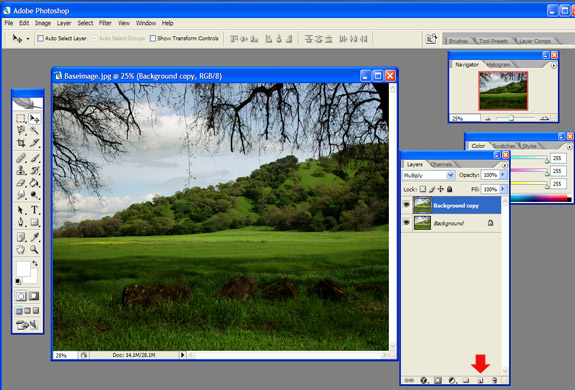
For the next step you will simply go to the Layers Palette and drag this background layer down over the New Layer icon (at the bottom of the Layers Palette next to the Trash Can icon), which will duplicate your base image. At the top of the Layers Palette choose Multiply from the little pull down menu bar. This will darken your base image markedly, so be sure you started with an image that wasn’t dark to begin with, something that is a lighter or medium range in darkness and contrast should do fine. Example of the results of this step below:

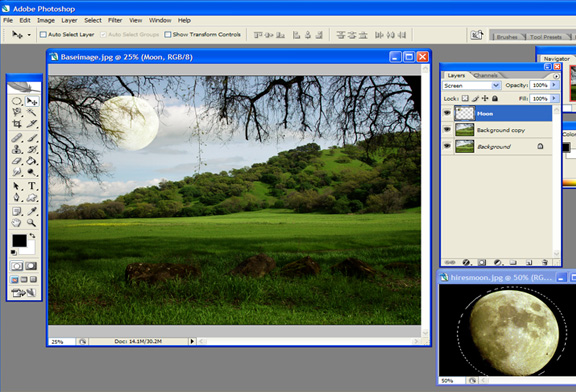
Next, we want to start adding some graphic elements, so I opened up a photo of the Moon that I captured, and selected it with the circle marquee tool up at the very top left side of the vertical toolbar, and copied and pasted it onto my background image using CTRL+C followed by CTRL+V. At the top of the Layers Palette you will now see the Moon layer. I also clicked the pull down menu at the top of the Layers Palette, and selected Screen, which eliminates any of the black background my moon was sitting upon. It also helps it blend into the cloudy background a little, and remains a bit transparent so the tree branches show through it, giving a bit of ‘false depth’ to the image. Here is an example of this part of the procedure:

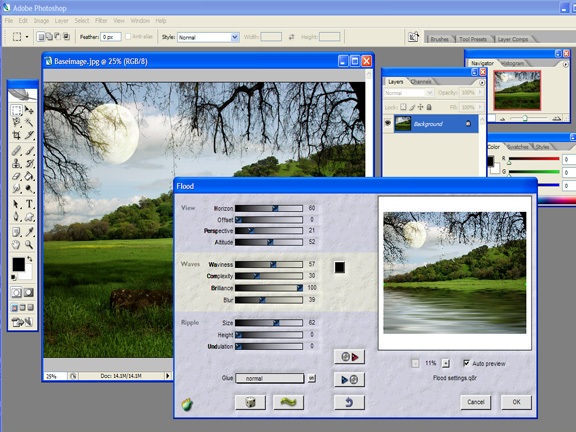
For the next step of our image creation here, we need to click on Layer>Merge Visible (this command is close to the bottom of the Layer drop down menu) so that we basically merge all three of the layers you have so far, in order to be able to apply a special effect from our Plug-ins. Once you have performed the Merge Visible command, you will see that there is now just one layer called Background. At this point, call up your Flood plug-in Filter>Flaming Pear>Flood, or anything else you may have available to make the effect of a glassy lake on your base image. Click OK once the settings of Flood are where you like them, and you should have an image that is like the one below:

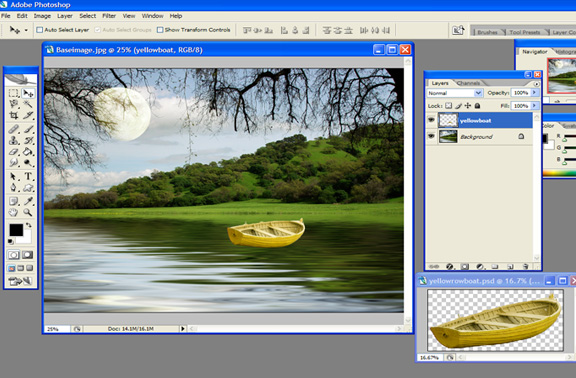
Okay, we are getting very close to the end of this exercise, but I felt like this picture was still a bit plain, although it is coming along. I decided that it might look nice to plonk another graphic element in the mix, so I opened up a photo of a boat that I took some time ago, and just simply dragged that onto my nice background image. I made a few minor adjustments of the boat, such as Edit>Transform>Scale, to make it smaller, and I also moved it around until it was in a place that looked good to me. Here is a view of this step:

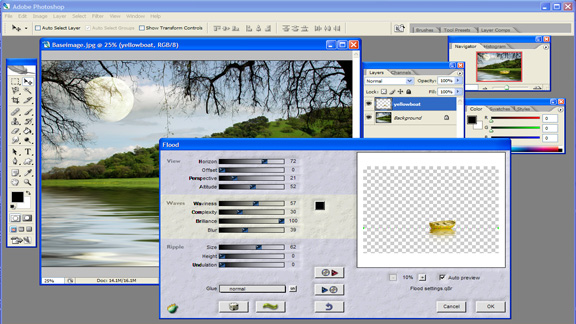
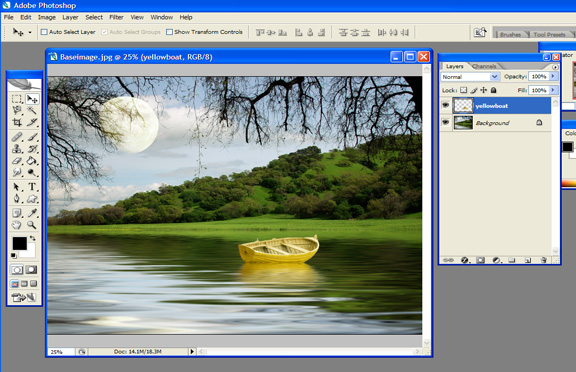
This looks all right, but the boat seems to be floating in space rather than on the lake I just created, so that must be remedied! What is nice about Photoshop, is that it lets you apply effects to each individual layer. In other words, I can add the Flood effect to the boat individually, and make it look like it ‘belongs’ on the water there, blending in. Making sure the boat layer is active or highlighted in the Layers Palette, click on Filter>Flaming Pear>Flood, and try to match up the reflection with the bottom of the boat, so that no space is between the reflection and the bottom of the boat. See the example below:

Once you click OK, the effect will apply to the boat, and will make it look like it belongs in the picture as the example:

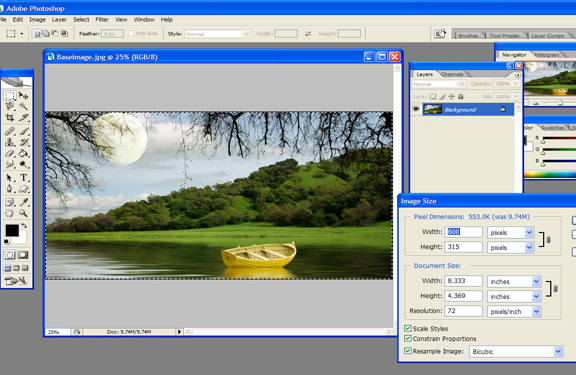
We are nearly finished, we just need to crop the image to a more ‘banner-appropriate’ size, and then add some text. So, let us begin by cropping this large image to something more manageable for our project banner. First, click Layer>Merge Visible again, so we get all the layers merged together. Now, grab the Rectangular Marquee tool, the top left tool in your vertical toolbar, and drag it inside your picture taking a chunk of your image that includes the main elements like the Moon and the rowboat, plus some of the water. You will want to then click Image>Crop, and take a look at what your markedly more banner-sized image looks like now. See the image example:

My image turned out to be about 600 pixels wide by 315 pixels high. This size is fine for my Blogger format sites. You may need to experiment with the size for your particular application. Next we will add some text, and then you will be finished with a very nice, creative, and unique banner for your blog or for a web site.

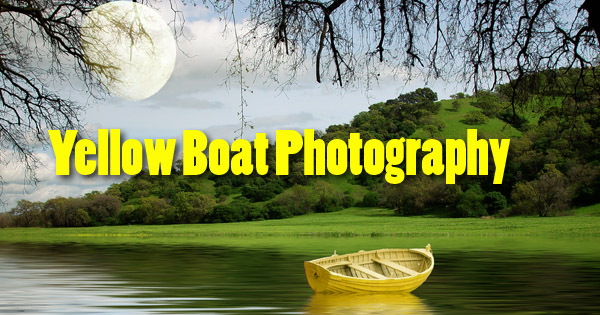
To complete this process, Click on your Text Tool in your vertical Toolbar. I chose a font called Poplar Std. which is a tall, blocky typeface. Type your title in the color you desire, and then apply a drop shadow effect to that type using the effects button located at the bottom of your Layers Palette, second from the left (looks like a black circle with a scripted “f” in it), and choose Drop Shadow. Click OK. The example turned out like this:

Now it is time to click Layer>Flatten Image to merge this new type layer with the rest of your design. Once you flatten the image, be sure to save it as a .jpg, and you are ready to upload it to your site. Here is the example of my final flattened image:

Wrapping Up

This might seem like a rather involved process just to design a web banner, but if you are interested in experimenting and working with layers in Photoshop, and creating something that is unique to your design elements and creativity, this is a very quick, fun little exercise to try out. This tutorial required the use of the Flaming Pear plug-in for Photoshop called Flood. However, you can do just as well without that step, and create any kind of composite layer image you like. The creativity part is literally at your fingertips!

Feature
Post

Category
General

Beautify Your Images with Affordable Photoshop Plug-in Filters

A while back, I discovered some fantastic plug-in filters you can buy to spiff up your web images that work wonderfully with Photoshop and Paint Shop Pro. I thought it would be fun to give a quick blow-by-blow on some of these filters just to give you an idea of what to expect from some of these great little additions to your graphic design software. Priced from as low as $15 per individual filter, or $49 for certain bundles containing four or so different filters, you simply can’t go wrong with these creative accessories.

Testing Plugins from Flaming Pear Software

This amazing software company has a fantastic group of plug-in filters available for purchase on their site, and each one is available to you for a 30 day free trial download! I highly recommend all the plug-ins this company offers. I have chosen five of their different effect filters to discuss in this article, and I hope you will go and check them out and grab your trial downloads…you won’t regret it!

Super Blade Pro - $30

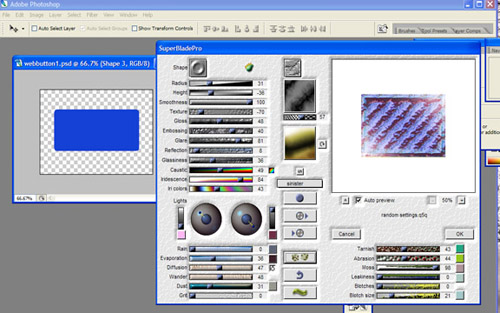
This plug-in filter is an absolute “must” for web designers who are looking for some fresh ideas to create unique, attractive web buttons. Once you install Super Blade Pro, it is a breeze to create a basic web button, then apply the filters by clicking Filter>Flaming Pear>Super Blade Pro. Once the filter quickly launches, you are shown hundreds of different variations, colors, textures and styles that you can apply to your plain ole button. I was floored by the beauty and uniqueness of each of the random styles you can sift through and choose from just by clicking a pair of dice. If you don’t happen to find anything that suits your fancy from their myriad of preset designs, you can tweak and torque the many settings and create your own variations from there. The simplicity of this plug-in will amaze you, and the results speak for themselves. Here is an example of what Super Blade Pro looks like once you choose it from your Filter menu in Photoshop:

I was extremely impressed with Super Blade Pro for its fantastic design choices and also for its ease of use. This effect filter gets a rousing standing ovation from me.

Flood - $20 (or $50 when purchased in the Photography Pack, bundled with Aetherize, Melancholytron, and Mr. Contrast)

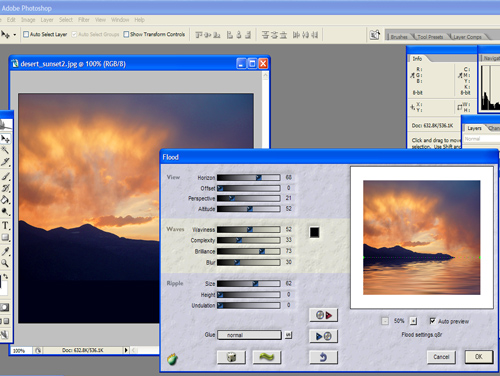
I have to say this effect is probably the most fun to use of all the Flaming Pear filters. It is exciting to see the results when you open a photo of say, a sunset, for instance, then apply the Flood filter to create your own beautiful “digital water scene” that suddenly appears before your eyes. Add a few of your other extracted elements and you end up with a stunning, creative digital illustration that will amaze you and everyone who sees it. The settings for the Flood waters you immerse your image in vary from waviness to complexity; and wave height to brilliance. It is just a stupendous effect that I personally never tire of. Take a look at the example below to see what I mean:

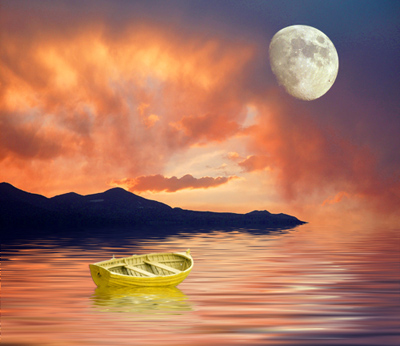
Once you adjust the settings to get the effect level you desire, and save your base image you’ve just ‘flooded,’ add some of your other graphic elements, such as I have done in the next example below, and enjoy the tranquility of your beautiful creation.

Whatever your desire in a water scene, whether you want to create a glassy pond or a raging hurricane, you can create all things watery with this versatile filter. Flood gets a very lengthy standing ovation from me.

Aetherize - $20 (or $50 when purchased in the Photography Pack, bundled with Aetherize, Melancholytron, and Mr. Contrast)

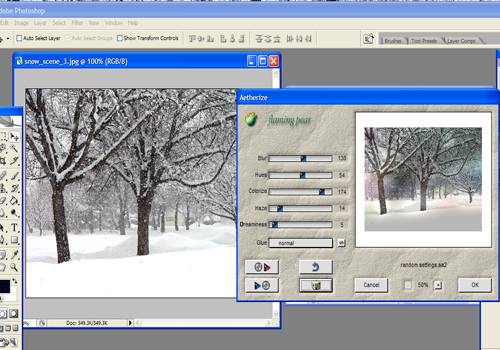
Aetherize is as its name suggests, an ethereal treatment for any image you choose. This filter is pretty versatile, and allows you to take mundane snow scene and turn it into a wintery wonderland, or a fairytale setting that looks amazing. A snow scene is what I used to illustrate Aetherize, but you can use anything at all. There are tons of well thought-out presets in this filter set for you to try, or you can make your own variation by tweaking to your heart’s content. For an example, I opened an image I captured of some trees with snow falling on them. You can see my results below:

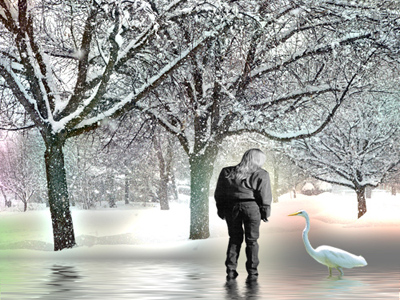
After I opened my snow scene image, I clicked Filter>Flaming Pear>Aetherize, and started experimenting with the different presets. I settled upon the one above that has some interesting and ‘dreamy’ looking colorizations to it. I then did a little tweaking and adding of other elements, and ended up with the dreamy scene below:

I also performed another little trick with this image; I combined filtration by applying the Flood filter to this after the Aetherize filter, to make an even more fantasy-looking composite image. This filter is really spectacular for sending any of your photos into an ethereal or dreamy direction, and gets a very enthusiastic round of applause from me!

Melancholytron - $20 (or $50 when purchased in the Photography Pack, bundled with Aetherize, Flood, and Mr. Contrast)

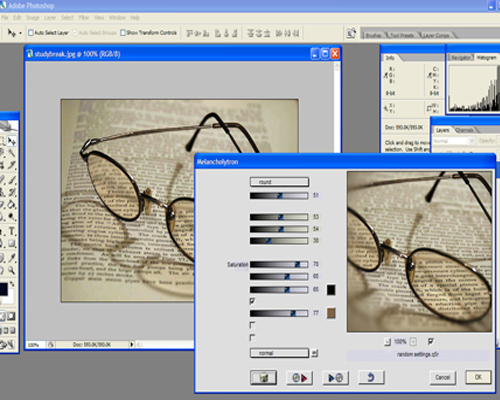
For my last filter review today, I’ve decided to talk about Melancholytron. This filter isn’t a really heavy-duty effect module like some of the others mentioned above, but it is a lovely addition for those who want to give a bit of an ‘old timesy’ look to a photo by blurring out photo edges and adding a sepia vignette to it. This effect works just splendidly on images that are already heading toward sepia tone, or even on b/w images as well. For this example I am using a photo that I ‘borrowed’ with permission from a friend of mine, Aussi photographer Michael Rowley, who captured a wonderful photo of a pair of glasses on an open book. I felt that this image would really be terrific with the addition of the Melancholoytron filter. See the example:

Melancholytron has many different presets you can choose from, and similarly to the other filters discussed here, also allows you to tweak as much or as little as you like using the settings sliders. For Michael’s lovely photo, I decided on a round vignette with a dark sepia tone to it, which enhances the tinting in the lenses, while gently blurring out the edges of the picture. Below is the finished photo after I also adjusted the levels slightly using Image>Adjustment>Levels. I felt this image just ‘come alive’ after applying the filter. Melancholytron gets an extremely heartfelt round of applause from me.


Photo: Michael Rowley, http://www.keepsakesphotography.com.au

Wrapping Up

With so many plug-in effect filters out there, it was really difficult to pick out just a few to review and discuss, and I barely just scratched the surface here by covering only one of the many plug-in software developers. However, I do plan to acquire more effect filter plug-ins in the near future, and I will certainly share some input with you on those as I work my way through them! It is absolutely amazing how many terrific creative tools are available, and just a few clicks and a free trial download away from you at anytime.

Feature
Post

Category
General

How to Use Adobe Illustrator to Create a Unique Distressed Text Effect

I was just surfing around the net the other day, and I started thinking about the myriad of varied text treatments I was seeing on different banner graphics. I decided that it is more interesting to design your own textured background for text rather than try to find an actual typeface on one of those free font download sites such as Fontgarden.com or Stomp.com, etc. I bring up these “free” font download sites because if you are going to use such a typeface from one of these sites, you usually have to pay for it in the long run if you want to use it on anything that is of a commercial nature, such as your website! It is always a good idea to check into the ramifications of downloading anything that is deemed as “free” anyway, regarding the legal copyright and usage of such elements. So, to get around any usage issues that could arise from finding a distressed typeface on the Net, and incorporating it into your web design, I decided to share this quick and easy Adobe Illustrator tutorial with you.

Step one of this process was to find a typeface on the Net that sported a similar treatment to the “distressed” look I wanted. Although I wanted something a bit more radical as far as the “distressing” part was concerned, I did come across this text treatment on the website of boxer Joe Calzaghe:

You get the idea of “distressed” or “beat up” text from Joe’s name on this banner graphic. While I liked this, and found it unique, I thought it might be interesting to push the envelope a bit, and come up with a considerably more distressed or “textured” look than this, while still making the text legible and eye-catching.

Taking the Steps

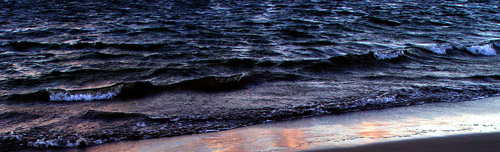
Open Adobe Illustrator (I used CS2), and then File>Open an image that has a lot of contrast and would make a good textured background to use as a base for your distressed text. For this, I cropped a section out of a larger photo of ocean and beach to the dimensions of approximately 8 inches wide and 2.5 inches high, and resolution of 150 ppi:

I felt that this photo had a lot of gritty little details that will translate to an interesting, highly textured base for my text treatment.

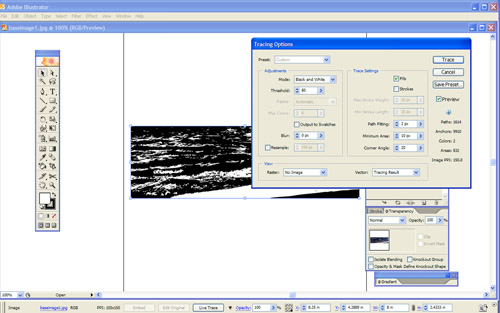
In Illustrator, select the image with the Selection tool (V) and then Object>Live Trace>Tracing Options. You want to see Tracing Options so you can modify some of the settings, and preview the results before you convert the image. In the dialog, enable the Preview option. The other Presets should be left at their default. This trace you are about to do, will output in black and white, which will be best to work with for this particular effect we want. You will also want to change the Threshold value, which controls the amount of black or white that appears in the image. We want as much detail as we can get, so I suggest using a value of around 75 or 80. But, don’t take my word for it, mess about with this yourself, the values can be adjusted right there in front of your eyes since you have the Preview button checked. Adjust the black and white image to have plenty of small details, and when you are happy with the Threshold value, go ahead and click the Trace button.

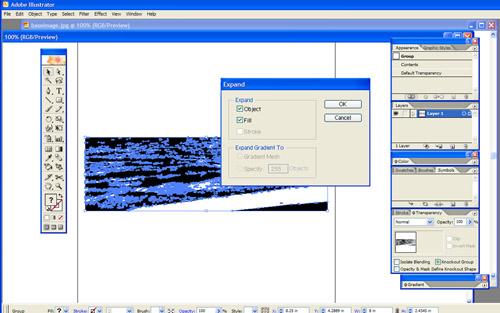
Next, in order to use this tracing, we need to convert it to paths. So, while the tracing is still selected, pick Object>Expand. In the dialog that comes up, click OK. For this project we want to work with the black areas only. Choose the Magic Wand tool (Y), select the white areas, and then press the Delete key (Mac) or the Backspace key (PC).

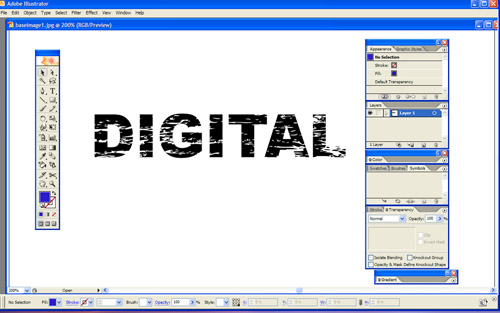
Now we will be placing some text over a portion of your new texture background and thus be able to get an idea of what the distressed text will look like. To accomplish this, click down below your texture somewhere else on the artboard, and choose the Type tool (T) and type something. I used “DIGITAL” for my example. I used a large font size, something like 60 or 72 pt, and chose the plain Arial Black, a font that’s free to use. I also switched my type color to blue in order to view this part of the operation more easily. Once you’ve typed your text, move this text onto the texture background and move it around until it is in a place where you feel the most texture will be applied.

Let’s have a look at what the text will look like once applied to our text by creating a clipping mask that uses the letters as a mask. Click Command+A (Mac) or Ctrl+A (PC) to select both the text and the texture, and choose Object>Clipping Mask>Make. Once you click again outside of your texture area, you’ll see the text revealed on its own, with the texture showing through it. In case you may not like how it looks at first, undo the clipping mask and move the text around to another area of the texture background and repeat this procedure again. Another option is to scale the texture background up or down or rotate it, distort it anyway you want that will help you achieve the texture on the text that looks how you want it. Here is what my text looked like:

For my purposes, this turned out exactly how I wanted it, a little distressed, but still clear and easy to distinguish the letters.

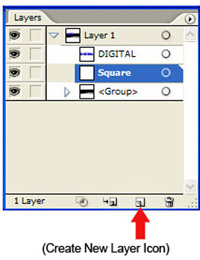
At this point, we want to delete some of the excess texture background, which we don’t need to keep, as it just is not needed, and makes the file size larger. First, we undo the clipping mask by clicking Edit>Undo Make Clipping Mask. Open the Layers palette and expand the layer by clicking on the arrow next to the Layer 1 thumbnail. Click on the texture Group layer to highlight it in the palette. Option+click (Mac) or Alt+click (PC) the Create New Layer icon, and name this layer “Square” in the Layer Option dialog, then click OK. This positions the new layer between the text and the texture.

Make sure the new layer called “Square” is highlighted or activated, and select the Rectangle tool (M) and draw a rectangle over the text and texture you want to keep. I suggest keeping the rectangle as close to the text as possible without clipping any of it. Click Command+A (Mac) or Control+A (PC) to select all. Open the Pathfinder palette (Window>Pathfinder) and click the Crop icon. See example:

What happens next, is a Live Paint Group, which is indicated by a grey rectangle around the artwork might appear after you click crop. If this occurs, just use your Selection tool and double click in an empty area of the artboard to disable it. Now you can safely reapply the clipping mask on your newly cropped artwork. Click Command+A (Mac) or Control+A (PC) to select your text and the texture, and then click Object>Clipping Mask>Make. Now you have a very unique piece of text that has a sort of ‘worn out’ or distressed appearance in your arsenal of special effect elements!

At this point you should File>Export and Save As a .jpg or other format file for use in your web designs. This can be opened in Photoshop now, and subjected to some more special effects if you so desire.

Wrapping Up

Although this is a simple enough procedure, it has a few specific steps, and may not be suitable for everyone wanting a text effect solution. This is offered as just one of the many options available to designers in search of interesting text treatments, and it also provides a nice opportunity for those not as comfortable using Adobe Illustrator to advance their creative skills in that program a bit!

Feature
Post

Category
Webapps

Upload And Manage Your Images Online For Free

Doing all that reviewing of online image editing software really got me thinking about what else can we do with all those neat images once we’ve done massive editing and reworking of them? So, I decided to look into some of the many online photo storage sites, several of which I already belong to, and write a quick review of some of my personal favorites!

Redbubble

Redbubble is an astonishingly complete site for uploading and organizing your images, and it has a whole lot more to offer than most of the others, that’s why I’ve decided to review the “very best” right off the bat instead of saving it for last!

This site is a relative newcomer to the Net, only being around for about a year. Even so, it is such a powerful site and community, that it earned itself a honorable mention from the much coveted Webby Awards! It deserves the recognition, believe me. At this site, you can pretty much upload your entire catalog or repertoire of large images for free, and that’s only the beginning!

What’s great and amazing about Redbubble is that it is a veritable “United Nations” of photographers, fine artists and writers. Everyone there has the ability to create their own personal page or “gallery” full of their work, whether it is art or prose, you have a place to do your thing for absolutely free. What else is fantastic about the “Bubble” is that you have the opportunity to actually sell your work, seriously! You can choose several different format options for your art and sell it as prints, greeting cards, or posters, whatever you want! Heck, you can even design and sell T-shirts of your art work. How cool is that?

Both the management and members at Redbubble host tons of interesting groups that you can join and participate in within the site. Lots of fun contests are running most of the time, and you can even be honored by having a piece of your artwork ‘exhibited’ on their front page. Lots to do all the time… you can never, ever get bored on the Bubble!

Another wonderful aspect of the Bubble, and perhaps my favorite of all, is the ability to meet people across the globe from Australia to America, England to Dubai, or Portugal to Canada, it doesn’t matter about the time differences, people will just gravitate toward each other, and have an opportunity to network with other like-minded artists and creative people. You can also comment and critique others’ works, and have your own work critiqued by your peers and friends. It’s just a wonderful place to go and find others like you, and have a great time talking to many diverse peoples all over this big Bubble we call Earth. I absolutely can’t say enough about this site, it’s really a ‘home away from home’ inside my computer! This online cybercafé, art gallery and community gets the absolute most rousing, foot stomping, Bic-flicking standing ovation from me ever!

Flickr

Flickr is a neat little photo and image storage site that allows you to login to it using your Yahoo email address since it’s a Yahoo company. What I like about Flickr is that it allows you to connect a little photo slideshow to your blog at Blogspot.com should you have one of those blogs like I do. It is a nice little place to do some very limited photo editing, and it has a nice drag and drop feature to allow you some batch processing say you want to resize a bunch of images from your ‘photo album’ on Flickr. One issue I have with Flickr is that it only allows you to upload 100 MB worth of your images per month, that is if you don’t have a premium account that costs about $25 bucks per year. This is probably okay with most people, but I’m one of those folks with tons and tons of huge images, so this site isn’t probably as flexible as I need it to be for my own needs, but it is a nice site and worth a look! Flickr gets a big round of applause from me for its ease of use and uploading, and for its little slideshow feature!

York Photo

York Photo is a wonderful site for all things image-related. What I like about York is it reminds me of an old style photo lab in that it allows you to upload you images and then order prints of them quick as a flash. Their offers and deals are unbeatable if you want to upload tons of your hi-res images and then have copies sent to you for very cheap or free, that’s right, York gives you so many freebies just for signing up. I am on my second round of “25 free prints”, which is fantastic in my view! This site also lets you have some flexibility in creating gifts out of your photos like mugs and mouse pads, T-shirts and greeting cards, and their prices are competitive. But wait! They even offer free shipping on lots of your orders, so they’ve definitely got my attention. This site gives you unlimited upload and storage capability, and the best part of all: Their printing is superior. I received some free copies of some of my uploaded images the other day, and the prints were just spotless and brilliant. They aren’t too bad with turnaround time either, and if they should falter and take a bit too much time getting your prints to you due to their high order volume, they e-mail you, and reward you by adding more freebies to your account. Everyone would be well served to sign up at York, it is well worth going there to check it out! York gets a rousing ovation from me for their great service!

Snapfish

Snapfish is a very nice photo storage program that is owned and run by Hewlett-Packard (HP), so you can bet that the quality is there, and is something worth looking into. This site offers you cheap prints for around 0.9 cents each, which is nice, and also gives you a sign up bonus of 20 free prints. When you login to Snapfish you’ll notice the GUI is very similar to York Photo, and they also use the same FTP, so it’s six of one and half a dozen of the other, but nice and easy just the same. Snapfish has also been around for quite a number of years, as has York, and I believe you’ll enjoy using both of them. You can never have too many photo upload sites bookmarked on your computer! Snapfish gets a very warm round of applause for their nice upload site.

Final Thoughts on Image Upload Sites

I must say I am very impressed with the quality, upload speed and ease of use of all four of the sites I have reviewed in this article, and I am confident there is something for everyone on any of these sites. Another plus for having your images uploaded to any one of the sites I’ve reviewed above is that you can copy and paste the link from your photo directly into your blog or websites, and then viewers can see your photo without it physically being located where your sites or blogs are. Very convenient! Whatever your needs are with regard to digital image processing, from storing large amounts of high-resolution images to printing copies of your photos, and even networking with a bunch of fantastic, like-minded, artistic individuals like yourself, it is definitely worth a few minutes of your time to go and visit these sites and have a look around!

Feature
Post

Category
Webapps

Cool Tools for Online Image Editing

So, you know how to do some neat stuff with Photoshop (like borders), but what if you need to resize a graphic or do some other digital image manipulation and you don’t have your regular setup on the road with you, or some other such issue has left you high and dry as far as image processing is concerned? Here are a few sites that I have very recently “test driven” and actually tried out on the net, and I have included a few brief comments on each for you:

Adobe Photoshop Express

Well, being that I bow down to the “Messiah” of all photographic/design programs, Adobe Photoshop, I figured this one will be something I’ll use over and over, and I would be right except for the fact that they are so backlogged with people trying to sign up, that I’ve not even received my login and password information yet, and it’s been a week! However, that little inconvenience aside, I managed to do a basic “test drive” of the program, and what I experienced was quite engaging and enlightening to say the least!

The interface itself is very attractive, and allows you to upload many photos to the tune of a total of about 2 Gig, which is pretty generous! The program organizes your photos into a photo album of sorts, and lets you click on any photo in order to do some amazing manipulation. One simple feature in particular was incredibly impressive to me; I could take an image and change the color of the main focus, which in this particular instance was a red car, with one click. The color change feature gives one a veritable laundry list of different colors you can choose to make the car just by plonking an eyedropper onto the car, which then opens up a horizontal bar at the top of the screen which allows you to ‘mouse over’ each color until you choose one to change the original to. It was a spectacular feature that I must have spent 10 minutes on just changing colors; and it was so specific and accurate, a feature that I really appreciated.

In test drive mode, I wasn’t able to upload any of my own photos, and I also wasn’t able to really study all of the amazing features available, but it gave me enough of a ‘taste’ that I am absolutely going back once the password issue is sorted out. This is an amazing little program that is sure to please “Photoshoppers” and anyone else in need of an online photo editing tool. I would have to comment that this particular online photo editing program has a bit of a learning curve, but it is easy to figure out once you start pressing and clicking. I believe folks who already use Adobe CS products already will have no problem at all going to Adobe Photoshop Express. This program gets a standing ovation from me!

Picnik

Nice, easy site to figure out, doesn’t take a brain surgeon! A big plus about this site is that you don’t have to login and create a password if you don’t want to ‘commit’ so to speak, you can just try it out and see if you like it first. I like that; it is a bit like try before you buy! I was extremely impressed with this little tool, I must say. I easily uploaded a large, not-so-great photo of mine, and was very quickly able to crop, auto-level, sharpen, and even change the ‘color temperature’ of my awkward picture. It took seconds, and did a very nice job. This program allows you to save your photo or graphic in several formats, and even gives you options for migrating your shot over to Flickr or MySpace.

I believe this tool is quick and easy to learn, and gives you a lot of nice features to choose from. I think if you need a fast fix to a photo you are trying to prepare for use on the web, this site is a must see. Photoshop users will find this program probably a bit easier to figure out, and will also experience some good flexibility like they are used to. Picnik gets a big round of applause from me.

FlauntR

While this site has a very high-tech, attractive GUI, it is a bit complicated if you’re not a digital image processing “maven.” I was not really impressed by the menu area that doesn’t show you how to access the image you are supposedly going to work on. It’s just not spelled out very clearly anyway. This site has a lot, no, tons of features that would take a bit of a learning curve to figure out, unfortunately, and sadly, it’s a bit of a slow-loader depending on which browser you are using. FlauntR requires that you create an account and sign in, which is not a biggie, but once you get there you’d better be prepared for a long frustration session! No rousing applause for this program, and although I felt their interface was very nice, their usability factor is practically nil in my view. This program gets no applause from me at this time; maybe I will revisit sometime in the future and see if I can figure it out!

And, finally, an online design application with a bit of a twist:

Kuler

Adobe Kuler is a rather interesting web-hosted application for generating color themes for websites, interior designs, scrapbooks, fabric patterns, or graphic identities. This exceptional little program allows you to create color themes and variations, or even base your web color theme on a photograph you have. It is a very different type of program compared to the online image manipulation programs I’ve been discussing so far. Check this site out; it’s well worth a visit there for sure. Each theme or color scheme has a name, and shows you the swatches associated with that particular theme.

The interface is very friendly and seems pretty easy to use. Some of the many features: Kuler has the ability to ‘extract’ color and generate themes from images you upload using quick mood presets or markers you can use to target specific colored areas. You can also search through their thousands of color themes very quickly, and look at their highest rated themes. Another very “kule” feature also makes it possible for you to access this program through your browser (any), their own Kuler desktop, and also from within Adobe Illustrator CS3, which really shows some terrific flexibility for Adobe users. Another Adobe product that gets a standing ovation from me, or 10 out of 10.

Final Words

Do visit some or all of these wonderful sites which all have something to offer just about anyone needing to deal with images on the Internet. As you can see, they all have different features as well as some similar ones, and most importantly, they are pretty easy and self-explanatory to use if you are willing to spend a few minutes to learn the basics. When compared to Adobe Photoshop, some do quite well, others not as well. I can’t say I would use all of these programs myself, but I certainly wouldn’t rule most of them out either.

What do you think? Have you tried any online imaging tools? If so, what’s your verdict?

Feature
Post

Category
Design

Jazz Up Your Web Images With Fancy Borders

Are you sick and tired of the old square or rectangle that your beautiful web images are surrounded by? It’s easy to make your square edged old jpgs and gifs look exciting and new if you’ll just follow these quick instructions for creating fancy borders around your photos in no time at all! You can use this easy Photoshop technique to spiff up your graphics for your own home page or blog, or for an outstanding banner or intro photograph. There are so many uses for doing this to your images, and you will come up with many yourselves after just trying this once! It is so easy! Okay, ready?

Fancy Borders Using Photoshop

Save this new version of your image as something else, that way you still have your “untouched” original intact.

Open any one of your images in Photoshop and resize the original image to something manageable. Save this new version of your image as something else, that way you still have your “untouched” original intact. My rule of thumb on sizing graphics is as follows: If I plan to use the photo on my web sites or blogs, I usually size them down to about 450 pixels wide by 338 pixels tall. For web, make your image resolution 72 ppi. If I you are not using your image for the web, then I suggest you make your image 200 to 300 ppi in size so it can be used in print media or whatever else. Anyway, enough of this resizing - that’s a whole other blog subject!

Once you have saved this new version of your image in Photoshop, immediately move over to the right of your screen with your mouse pointer and locate the Layers palette that is usually docked in the right side of your Photoshop work space. You will see the little icon that represents your open photo, which is usually named “background.” Put your mouse on that little square representation of your photo and drag it down over the New Layer icon at the bottom of the layers palette (it is the little square next to the trash bin). This will duplicate your background layer and create a new one called “background copy.”

Next, move your mouse pointer down to the New Layer icon again and just click on it once. It will create a new blank layer. Click on the new blank layer and drag it between the other two background layers. Make sure your default color picker colors are set to black and white (type the letter “d” to reset to your default color scheme in Photoshop). With the new blank layer active (it will show as highlighted), click Alt+Backspace (on Windows), this fills that empty new layer with the color white. Your layers palette should look like the example below if you’ve done these steps correctly:

Now, while you are still in the layers palette, click on the background copy layer to target that layer and make it “active”. Click the rectangle marquee tool (the tool on your vertical toolbar that is at the very top left) and click and drag a selection area that is just inside the edge of your image, probably around 1/8″ in size thereabouts. See example:

Click on the Layer Mask button at the bottom of the layer palette menu (third button from the left – a grey square with a white circle in the center). If you have done this correctly, you should now see a little white border appear all around your photo as in the example below:

Next, click the Filter menu at the top of your document work space, then click Brush Strokes from the drop down menu that appears, and choose Sprayed Strokes from that menu. The filter gallery will open up and show you a blank, white photo image area with that particular effect you just chose applied to it as a black, jagged looking border. To adjust the effect in the filter gallery, make the stroke length about 6 and the spray radius around 15, this looks really neat. Experiment with what amount of effect you like best. Next, just click OK to approve of the effect and close the filter gallery. Voila, looks cool doesn’t it? Also, while you are being creative, go to the Layer Palette again and click on the effects icon (black circle with a script ‘f’ in the center of it) and choose Drop Shadow just for fun! That’s what I did in my example here:

To finish out your border, just click the Image menu and choose Flatten Image (or Save For Web in the File menu) so that you can save your file as a .jpg, and you are ready to go! Easy wasn’t it? Experiment on your own by using a black background fill next time, or some other color… it’s all up to you and your own creativity!

Finished image example: