Constructing a WordPress Plugin Admin Panel

This post was written as part of the How to Write a WordPress Plugin series.
Any plugin that needs user input, such as changing a variable, should have some kind of administration panel. Building a administration panel isn't all that difficult, so it annoys me when plugin authors decide not to build one and want plugin users to modify PHP code. Asking users -- whose experience with PHP might be nil -- to modify code is generally not a good idea. This post will go into what it takes to successfully create an admin panel for your plugin.
A Place to Store the Variables
One of the first problems you will likely encounter when constructing your own admin panel is where exactly to store the variables. Luckily WordPress makes it quite easy with options. I will explain options and database storage in a later post in this series. For now, all you have to do is nod your head and follow the steps to store your own admin variables in the WordPress database.
The first thing I usually do with regards to options is to assign a "unique" name for my admin options. I store this in the form of a member variable inside my class. In the case of the Devlounge Plugin Series plugin, I added this variable declaration to the DevloungePluginSeries class:
Name Your Admin Options
-
class DevloungePluginSeries {
-
var $adminOptionsName = "DevloungePluginSeriesAdminOptions";
-
function DevloungePluginSeries() { //constructor
-
-
}
Line 2 shows where I added in my member variable. I named my variable adminOptionsName and gave it the long and unique value of DevloungePluginSeriesAdminOptions.
Set Your Admin Default Options
You're going to need a place to initialize your admin options, especially when a user first activates your plugin. However, you also need to make these options upgrade-proof just in case you decide to add more options in the future. My technique is to provide a dedicated function to call your admin options. Your plugin needs may be different, but most admin panels aren't incredibly complicated so one function for your admin options should be sufficient.
Here's the function I inserted in the DevloungePluginSeries class:
-
//Returns an array of admin options
-
function getAdminOptions() {
-
'add_content' => 'true',
-
'comment_author' => 'true',
-
'content' => '');
-
$devOptions = get_option($this->adminOptionsName);
-
foreach ($devOptions as $key => $option)
-
$devloungeAdminOptions[$key] = $option;
-
}
-
update_option($this->adminOptionsName, $devloungeAdminOptions);
-
return $devloungeAdminOptions;
-
}
What this function does is:
- Assigns defaults for your admin options (lines 3 - 6).
- Attempts to find previous options that may have been stored in the database (line 7).
- If options have been previously stored, it overwrites the default values (lines 8 - 11).
- The options are stored in the WordPress database (line 12).
- The options are returned for your use (line 13).
Initialize the Admin Options
The getAdminOptions can be called at anytime to retrieve the admin options. However, what about when the plugin is first installed (er, activated)? There should be some kind of function that is called that also retrieves the admin options. I added the following function into the DevloungePluginSeries class:
-
function init() {
-
$this->getAdminOptions();
-
}
Short, sweet, and simple. An action, however, is required to call this init function.
-
add_action('activate_devlounge-plugin-series/devlounge-plugin-series.php', array(&$dl_pluginSeries, 'init'));
This action is a little complicated, but easy to figure out. Here's what the action does:
- You tell it to run when a plugin has been activated.
- You give it the path to the main plugin PHP file, which is devlounge-plugin-series/devlounge-plugin-series.php. This of course is assuming that your plugin is properly placed in the wp-content/plugins/ directory.
- You pass a reference to the instance variable dl_pluginSeries and call the init function.
So anytime the plugin is activated, the init function is called for the Devlounge Plugin Series plugin.
How the Admin Panel Works
Before I delve into the code of constructing the actual admin panel, it will be beneficial to describe the behavior of the admin panel. Here are the steps you'll want to take for setting up your admin panel:
- Check to see if any form data has been submitted.
- Output notifications if form data is present.
- Display the admin panel options.
One thing that may confuse you greatly in the admin panel is the use of the _e WordPress function. The _e function allows WordPress to search for a localized version of your text. This will help WordPress potentially translate your plugin in the future. The function works like a normal echo, but instead you pass it your text and an identifier variable (typically your plugin name). An example would be:
_e('Update Settings', 'DevloungePluginSeries')
This code would work the same way as: echo "Update Settings".
Set up the Admin Panel Function
The first thing we want to do is set up a function that will actually print out the admin panel. The function's name will be printAdminPage. This next bit of code will read in the options we specified earlier and check to see if any post options have been submitted. All the code in this section is assumed to be within the printAdminPage function.
-
//Prints out the admin page
-
function printAdminPage() {
-
$devOptions = $this->getAdminOptions();
-
-
$devOptions['show_header'] = $_POST['devloungeHeader'];
-
}
-
$devOptions['add_content'] = $_POST['devloungeAddContent'];
-
}
-
$devOptions['comment_author'] = $_POST['devloungeAuthor'];
-
}
-
$devOptions['content'] = apply_filters('content_save_pre', $_POST['devloungeContent']);
-
}
-
update_option($this->adminOptionsName, $devOptions);
-
-
?>
-
<div class="updated"><p><strong><?php _e("Settings Updated.", "DevloungePluginSeries");?></strong></p></div>
-
<?php
-
} ?>
All the above code does is load in the options and test to make sure each portion of the form is submitted. The if-statement overkill isn't necessary, but sometimes it is useful for debugging. The first form variable that is tested as being set is update_devloungePluginSeriesSettings. This variable is assigned to our "Submit" button. If that isn't set, it's assumed that a form hasn't been submitted.
As promised, in line 16, I use the apply_filters function to format the content for saving in the database.
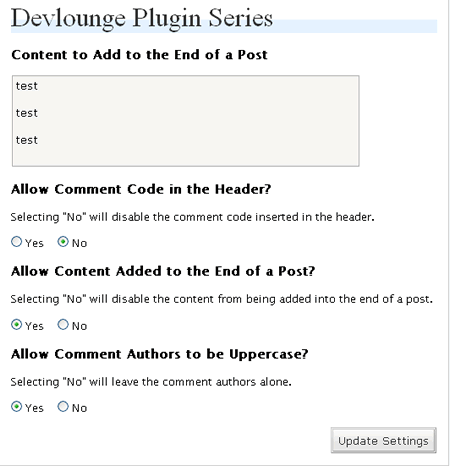
The next bit of code will display the HTML form that is necessary for the admin panel. It's a little involved, so I'll summarize it here. All the code is doing is displaying the form elements and reading in options.
-
<div class=wrap>
-
<form method="post" action="<?php echo $_SERVER["REQUEST_URI"]; ?>">
-
<h2>Devlounge Plugin Series</h2>
-
<h3>Content to Add to the End of a Post</h3>
-
<textarea name="devloungeContent" style="width: 80%; height: 100px;"><?php _e(apply_filters('format_to_edit',$devOptions['content']), 'DevloungePluginSeries') ?></textarea>
-
<h3>Allow Comment Code in the Header?</h3>
-
<p>Selecting "No" will disable the comment code inserted in the header.</p>
-
<p><label for="devloungeHeader_yes"><input type="radio" id="devloungeHeader_yes" name="devloungeHeader" value="true" <?php if ($devOptions['show_header'] == "true") { _e('checked="checked"', "DevloungePluginSeries"); }?> /> Yes</label> <label for="devloungeHeader_no"><input type="radio" id="devloungeHeader_no" name="devloungeHeader" value="false" <?php if ($devOptions['show_header'] == "false") { _e('checked="checked"', "DevloungePluginSeries"); }?>/> No</label></p>
-
-
<h3>Allow Content Added to the End of a Post?</h3>
-
<p>Selecting "No" will disable the content from being added into the end of a post.</p>
-
<p><label for="devloungeAddContent_yes"><input type="radio" id="devloungeAddContent_yes" name="devloungeAddContent" value="true" <?php if ($devOptions['add_content'] == "true") { _e('checked="checked"', "DevloungePluginSeries"); }?> /> Yes</label> <label for="devloungeAddContent_no"><input type="radio" id="devloungeAddContent_no" name="devloungeAddContent" value="false" <?php if ($devOptions['add_content'] == "false") { _e('checked="checked"', "DevloungePluginSeries"); }?>/> No</label></p>
-
-
<h3>Allow Comment Authors to be Uppercase?</h3>
-
<p>Selecting "No" will leave the comment authors alone.</p>
-
<p><label for="devloungeAuthor_yes"><input type="radio" id="devloungeAuthor_yes" name="devloungeAuthor" value="true" <?php if ($devOptions['comment_author'] == "true") { _e('checked="checked"', "DevloungePluginSeries"); }?> /> Yes</label> <label for="devloungeAuthor_no"><input type="radio" id="devloungeAuthor_no" name="devloungeAuthor" value="false" <?php if ($devOptions['comment_author'] == "false") { _e('checked="checked"', "DevloungePluginSeries"); }?>/> No</label></p>
-
-
<div class="submit">
-
<input type="submit" name="update_devloungePluginSeriesSettings" value="<?php _e('Update Settings', 'DevloungePluginSeries') ?>" /></div>
-
</form>
-
</div>
-
<?php
-
}//End function printAdminPage()
One observation to make in the above code is the reference to the options and how the HTML and PHP is integrated.
Set up the Admin Panel Action
Now the the printAdminPage function is added, we need to call it through an action. First a function must be set up right above the actions that it outside the scope of the class.
-
//Initialize the admin panel
-
function DevloungePluginSeries_ap() {
-
global $dl_pluginSeries;
-
return;
-
}
-
}
-
}
-
}
The above code does this:
- A function named DevloungePluginSeries_ap is created.
- Variable dl_pluginSeries is tested for existence (lines 4 - 7). This variable references our class.
- An admin page named "Devlounge Plugin Series" is initialized and our printAdminPage function is referenced (lines 8-10).
The add_options_page function format is described by WordPress as: add_options_page(page_title, menu_title, access_level/capability, file, [function]);
The access level (in this case a 9) is described in more detail at the Users Levels page in the WordPress codex.
An action must now be set up to call the DevloungePluginSeries_ap function:
-
add_action('admin_menu', 'DevloungePluginSeries_ap');
Conclusion
We now have an admin menu that we can use to set our plugin's behavior. The code to influence the behavior of the plugin was added, but was not described here. You can download the current version of the Devlounge Plugin Series plugin regarding administrative panels.
If you were to test out the plugin code above, you would see an admin panel for the plugin and be able to manipulate its output.
Download the Code Used In This Post
For further reading, please check out these links:


Want an avatar? Get a gravatar! • You can link to this comment
Hi,
I’ve been using this technique for options (the array) since I first read your tutorial several months ago. I was wondering if you know of a way to store my options in an array like above with the new way that 2.5 is handling the option page (http://codex.wordpress.org/Creating_Options_Pages). They process the options for you and use the field names for the options names.
Want an avatar? Get a gravatar! • You can link to this comment
Hi Ronald,
It would be great if you can modify your example to use only a single option as I’m confuse on this thing when follow your example.
But the overall is GREAT. This is a real content!
Thanks,
Want an avatar? Get a gravatar! • You can link to this comment
Hi,
thank you very much for this “HowTo”, it’s really complete and easy to understand (I’ve been learning PHP for 5 months…), moreover it does cover ALL we should know about developping plugins for WordPress.
I’m developping (trying actually…) a very ’simple-to-use’ thumbnail generator for Wordpress, just as ‘Post-Thumb Revisited’ does (but it’s to hard to configure in my opinion), I’ll come back here when it’s over.
Best regards.
Want an avatar? Get a gravatar! • You can link to this comment
this is an EXTREMELY helpful article. i’ve been trying to design my initial plugin with an admin panel and it has been taken a ‘bit to long. this “how to” has been a big help.
Want an avatar? Get a gravatar! • You can link to this comment
“Building a administration panel isn’t all that difficult”
It is now THAT difficult thanks to you!
Want an avatar? Get a gravatar! • You can link to this comment
Fantastic tutorial!
Question: Do you recommend now using:
register_activation_hook()… for registering functions that are to be run only when the plugin is activated?
Want an avatar? Get a gravatar! • You can link to this comment
I’m not sure what totallyconfused is talking about. I’m comfortable with all the technologies used by Wordpress (PHP, MySQL, etc) but if it wasn’t for this tutorial I’d probably still be on a fishing expedition in the codex trying to figure it all out.
Anywho… due to the size of the CSS included with Wordpress it’d be really nice if they had an easy to use and in depth API on ways to include formatting in your admin pages. Other than div id=”wrap” and using h2 elements, that is! Anybody know where to find one?
Want an avatar? Get a gravatar! • You can link to this comment
Hi,
I have followd your tutorial exactly as it is, but I don’t see any adming panel in my WP Plugins section. Where can I get it?
Regards,
Gary.
Want an avatar? Get a gravatar! • You can link to this comment
I really like this series of post. Thank you
Want an avatar? Get a gravatar! • You can link to this comment
Outstanding Article , I considered it phenomenal
I look ahead to more innovative postings like this one. Does This Site have a RSS I can subscribe to for new postings?
Want an avatar? Get a gravatar! • You can link to this comment
Thanks for your nice effort to teach how to make plugin ,i have an error about following the above code ,i get “Call to undefined function add_options_page()” error
Want an avatar? Get a gravatar! • You can link to this comment
Wow this article is awesome. I tried reading the wordpress documentation but it was to general. Your article focuses on a specific topic and does hell of a job on it.