If you are managing a WordPress installation and for some reason, maybe a hacker, you no longer have access to your Administration panel using your user name and password, then it might be time to change that information using WordPress’ database.
Even if you don’t have CPanel, you should have access to phpMyAdmin. It is a simple, but powerful, application that allows you control over your databases, and can be easily used to change all kinds of information stored in the MySQL databases it manages.
Step 1: Do You Know Which Database WordPress Uses?
Before we do anything else, we have to assertain which database WordPress is using. If you only have one WordPress publishing system installed, this isn’t a problem. If you have used an automated means of installing WordPress, you probably don’t remember what database you have used.
Even worse, if you are like me and have over a dozen WordPress installations spread on a few different databases, with some using the same database, figuring out which one you need to change can be a nightmare.
The easiest way to figure out which database you are using is to FTP into your hosting, and open the wp-config.php file with a text editor. It will give you the database name, which we will use later in this tutorial.
Step 2: Getting to phpMyAdmin
 In a CPanel environment, you will most likely have a button called MySQL Databases. It may or may not look like the image over to the right, but none the less, it should be there somewhere.
Clicking on it will list all of your current databases, as well as other information. Don’t concern yourself with all this right now. Move to the bottom of the page, where there should be a link that says, phpMyAdmin.
Step 3: Finding Your Users
A new window will most likely have opened. It will have two panes. On the left hand side you will have a list of databases. Click on the one related to the WordPress installation we are going to work with.
Look for a table called wp_users in the left hand pane. It is usually the last item in the list.
*Note: If your WordPress table prefix is not wp_ then you will be of course looking for your custom prefix user table. You can find your prefix in the wp-config.php file.
Click on the user table link, and in the right hand pane, the information will change. At the top there should be a few links. Click Browse.
It should then look something like the following image.

Step 4: Editing the Password
You will notice there is a field called user_pass. This is where the password is stored in WordPress. Find the user you want to edit, and click the pencil image next to the red X. This will allow us to edit the entry.
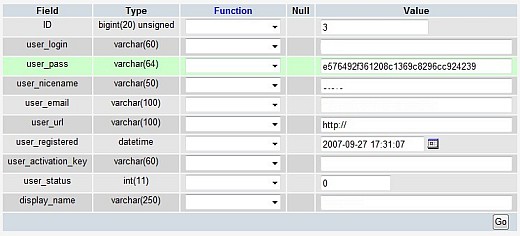
You will notice the password is strange, and not plain text. This is because for security reasons, WordPress stores the passwords as an MD5 hash.
We can’t just enter a normal text password, and should replace the MD5 hash of the password we don’t know with the MD5 hash of a password we do know.
To create an MD5 hash, I usually just search for “online MD5 hash” on Google, and come up with some great online tools for creating the result I need.
Example: Javacript MD5
In such tools, I enter what I want the password to be, click a button to process it, and it spits out the MD5 hash that I want to enter in the user_pass field.
Click Go to save the change, and then log in to WordPress using your new password.
Sidenote
If a hacker was able to change your password, or other information in WordPress, upgrading should also be one of the first things on your mind once you change your password.