Feature
Post

Category
General

Graphic Design Glossary

For those of us who are term-challenged (like me) or want to pretend like they know what they’re talking about, there is a Graphic Design Glossary that is being hosted by Lauren at Creative Curio.

Something like this is very useful as a reference, but I doubt it’ll help the non-techies. I still roll my eyes when I ask for something in a PSD, and the person replies back, “A what?”

Be sure to check out the Graphic Design Glossary and let Lauren know how you like it.
Feature
Post

Category
General

PollDaddy 2 Released

For those of us who like to run polls on our site, there are a myriad of options. For example, with WordPress there is WP-Polls. But what about for non-WordPress bloggers? Or perhaps a blogger that wants to create a one-time poll and be done with it? That’s where PollDaddy comes in.

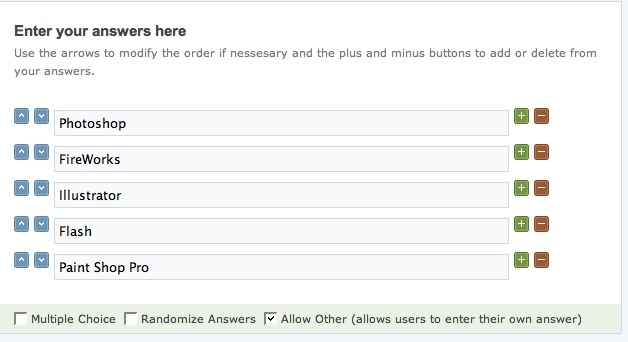
Setting up a poll is pretty easy. Just create an account and create a new poll or survey. Below is an example of me entering some questions for a poll attached to the end of this post.

PollDaddy 2 Options

For a complete feature set, please check out the PollDaddy Version 2 features. Some features I think others will enjoy are:

  • Localization support.
  • More answer choices (up to 100).
  • Ability to export results to CSV.
  • Ability to custom-theme poll appearance.

There is also a pro account, but for my use I think $20 a month is a bit much. See below for a sample poll created using PollDaddy.

Feature
Post

Category
Code

Protect Your WordPress WP-Config So You Don’t Get Hacked

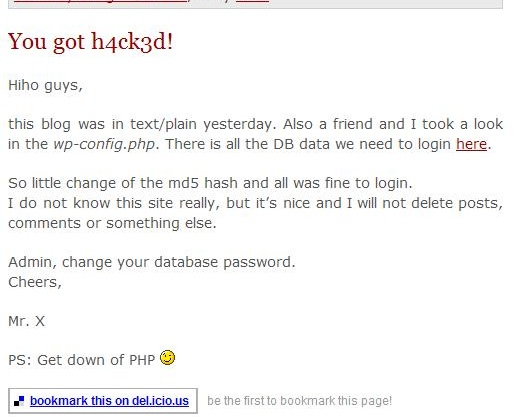
Today while at work I was browsing my feeds when I stumbled across a very odd headline: You got h4ck3d!

I thought it was a joke. So I went to the website.

Hacked Website Message

As you can see from the image, the hack is legit. The author promptly removed the post within a few hours and it was like nothing ever had happened.

The way the hacker got in was through the "wp-config.php" when it was readable as plain text. From that, the hacker can get your database name, and your database username and password. This could've have easily been prevented, even if the hacker could read the "wp-config" file.

Protect it the .htaccess Way

Josiah Cole wrote a nice htaccess tutorial on modifying your .htaccess to protect the wp-config.

Here's the code he used:

PHP:
  1. # protect wpconfig.php
  2. <files wp-config.php>
  3. order allow,deny
  4. deny from all
  5. </files>

Protect the WP-Config by Moving the File

Now one can move the wp-config to an unpredictable location and change the code in the source, but that would be a pain to do with every WordPress upgrade.

How about creating a separate PHP file in a non-WWW accessible location and use the WP-Config to include that file.

Say for example that your web include path for your server was /home/yourname/public_html/. You can actually save a file in the /home/yourname/ area and it won't be web accessible. Meaning that even if somebody were able to read your wp-config, they wouldn't get anything valuable.

Here are the steps that I took.

Create a "config.php"

Within this config.php file I included the following:

PHP:
  1. <?php
  2. define('DB_NAME', 'your_db_name');    // The name of the database
  3. define('DB_USER', 'your_db_username');     // Your MySQL username
  4. define('DB_PASSWORD', 'your_db_pass'); // ...and password
  5. define('DB_HOST', 'localhost');    // 99% chance you won't need to change this value
  6.  
  7. // You can have multiple installations in one database if you give each a unique prefix
  8. $table_prefix  = 'yourdbprefix_';   // Only numbers, letters, and underscores please!
  9. ?>

I uploaded this file to a non-WWW readable location. Normally this should be the directory before "public_html" or "www".

Modify the WP-Config

I then modified the "wp-config.php" file to include the file. If somebody were to somehow read the contents of my WP-Config, all they would see is this:

PHP:
  1. <?php
  2. include('/home/yourname/config.php');
  3.  
  4. // Change this to localize WordPress.  A corresponding MO file for the
  5. // chosen language must be installed to wp-includes/languages.
  6. // For example, install de.mo to wp-includes/languages and set WPLANG to 'de'
  7. // to enable German language support.
  8. define ('WPLANG', '');
  9.  
  10. /* That's all, stop editing! Happy blogging. */
  11.  
  12. define('ABSPATH', dirname(__FILE__).'/');
  13. require_once(ABSPATH.'wp-settings.php');
  14. ?>

Please note that the include paths change from server to server, but hopefully you get the idea. Save your sensitive information in a non-WWW location, and have the WP-Config file read it in. This way you won't have to change anything if you have to upgrade WordPress.

Conclusion

If a person with malicious intent finds your WP-Config file and can actually read the contents, your website is exposed. Devlounge wrote an article earlier today that revealed how easy it is for a hacker to change your password (and get admin access to your blog) using phpMyAdmin.

You can never be too careful about these things, so protect your WP-Config and make sure you have a recent database backup.

If there are any more ways to protect the WP-Config that I didn't already mention, please feel free to add them in the comments.

Feature
Post

Category
General

Last Updated Categories WordPress 2.3 Query

With Wordpress 2.3 about to be released, I had to update some code I used to correspond with the new taxonomy schema.

For another blog I run, I have a feature where I show only the categories that have recently been posted against. For example, this post is being published under the category 'Sidenotes', so sidenotes would be the first category shown on a list.

For the new schema, I had to write a new query. I thought I'd share my query in case others find it useful or want a real example of a query using the new taxonomy schema.

PHP:
  1. <?php
  2. function getLastFiveCats() {
  3.     global $wpdb;
  4.     $query = "select t.term_id as term_ids, t.name, t.slug, max(p.ID) as id, tx.count from $wpdb->terms t, $wpdb->term_taxonomy tx, $wpdb->term_relationships tr, $wpdb->posts p where t.term_id = tx.term_id and tx.parent != 0 and tx.taxonomy = 'category' and tr.term_taxonomy_id = t.term_id and tr.object_id = id and p.post_status = 'publish' group by term_ids order by id desc limit 5";
  5.     $results = $wpdb->get_results($query);
  6.     foreach ($results as $result) {
  7.         $catPermalink = get_bloginfo('url') . "/category/" . $result->slug . "/";
  8.         ?>
  9.             <li><a href='<?php echo $catPermalink ?>'><?php echo $result->name ?></a></li>
  10.         <?php
  11.     }
  12. }
  13. ?>

Please note that this query only searches for non-parent categories, but this can be changed to search for all categories pretty easily by removing: tx.parent != 0

Here's another query that gets all the categories and orders them by when they were last updated:

PHP:
  1. <?php
  2. function getAllCats() {
  3.     global $wpdb;
  4.     $query = "select t.term_id as term_ids, t.name, t.slug, max(p.ID) as id, tx.count from $wpdb->terms t, $wpdb->term_taxonomy tx, $wpdb->term_relationships tr, $wpdb->posts p where t.term_id = tx.term_id and tx.taxonomy = 'category' and tr.term_taxonomy_id = t.term_id and tr.object_id = id and p.post_status = 'publish' group by term_ids order by id desc";
  5.     $results = $wpdb->get_results($query);
  6.     foreach ($results as $result) {
  7.         $catPermalink = get_bloginfo('url') . "/category/" . $result->slug . "/";
  8.         ?>
  9.             <li><a href='<?php echo $catPermalink ?>'><?php echo $result->name ?></a></li>
  10.         <?php
  11.     }
  12. }
  13. ?>

Recently Updated Categories

Feature
Post

Category
General

Two Social Bookmarking Icon Sets

I was recently on the hunt for some social bookmarking icons. I found a couple of resources, but all of the icons were for a particular background color. And then I stumbled upon a resource with some icons with the beloved transparent background.

Both icon sets are from the same site: http://www.vikiworks.com/

Social Bookmarking Icon 1

Social Bookmarking Icon 2

For the code to implement some of the icons, please check out the Life Rocks! 2.0 icon page.

Feature
Post

Category
Design

15 Design Decisions That Annoy Readers

I usually view a lot of sites when trying to come up with inspiration for a new design. After recently re-designing a site and creating a WordPress theme from scratch, I thought I'd share a couple design decisions I found annoying. It should be noted that this article is a combination of two articles I wrote over at the Reader Appreciation Project regarding annoying design decisions, so a lot of the annoyances mentioned here are directly from reader feedback.

Pop-Ups

Kontera Ad

Let's face it. In-text advertising is annoying. Not necessarily because the ads get in the way, but because of the pop-ups that routinely show their face. Now I'm not talking about pop-up ads; I'm talking about pop-ups that show up when you hover over a link.

An example I came across (unfortunately no screenshot) is when you hover over a link and it displays, "You have the nth most popular outgoing link." I could really care less how many people have clicked on my link. It's also demoralizing when you come in last.

Another example of pop-ups is in-text advertising. Daniel from Daily Blog Tips mentions to stay away from in-text advertising. Part of this is because of the annoying pop-ups that come up when "accidentally" hovering over an ad-link.

Turning Off the Time Stamp on Posts

Erica says,
When I find a blog with no time stamp, I feel conned.
Read the full comment.

Rory Sullivan lays it out when he tells his readers that taking the time stamp off on a blog post is like public speaking with one hand in your pocket. Of course, the argument for turning off timestamps is to make the content "appear" more timeless.

Shouldn't it be the readers -- and not the bloggers -- who decide which content is timeless and which content is not?

Pop-up Windows

In the age of IE7 and Firefox tabs, pop-up windows are growing even more annoying. It is becoming common for users to open pages in new tabs, not new windows. Readers should not be forced to view pages in new windows. It should be the reader's choice. You can never force a reader to stay on a page, so why annoy them with a pop-up window?

Let readers navigate the way they want to navigate. Don't ever force a reader into anything.

Snap Preview Pop-ups

MT says,
The Snap preview popup is one of those ideas that sounds good, but is very annoying in practice. I’d rather a small option to see the preview popped up. Read the full comment.

Snap Shots allow a reader to view a website's design by simply hovering over a link. The feature is annoying for several reasons:

  • Readers have no choice in the matter. Now a reader can opt-out. Opting out still sucks, however.
  • Snap Shots are obtrusive.
  • Snap Shots are arguably unnecessary. What is the value of knowing what a blogger's site looks like anyway?

Having the Subscribe Box Higher Than the Search Box

Having a search box towards the top of your theme is a given, or at least it should be. A search box should be visible and simple according to Jakob Nielson.

Arguably, a search box should also be above the fold and towards the top of any theme. While a designer should have the freedom to place the search box wherever he/she chooses, having a search box in an unpredictable location will just confuse readers. It should also be noticed that having the subscribe box higher than the search box will just result in more confusion, especially since said subscribe boxes often launch pop-ups after inputing a query.

Having a Dark Background

I personally am very fond of dark backgrounds. However, some users do get annoyed by darker backgrounds. There are some that have the firm stance that all websites "must" have white backgrounds and plenty of "white" space.

I of course do not agree holistically, but I have seen some designs where the darker background hindered reading. When I do design for a darker background, I make a considerable effort to ensure that all of the text is readable.

Examples of sites with dark backgrounds which I think look awesome are ShawnBlanc.net and also Larissa's site.

Auto-Play Music

Snoskred says,
If a site plays music at me I find out which site it is, close it down ASAP, and if that site was in my google reader I choose to unsubscribe right away. Read the full comment.

May all MySpace users who have music be sent to a special place in hell. Okay, maybe that's a little harsh. MySpace users don't really know any better, right?

However, a serious website owner should know that readers should have a choice in the matter whether music plays on a site or not.

Not only do you have people browsing from work, but you also have people who aren't very technical who can be really confused when the music starts blaring. Music on a website should be an opt-in affair.

Not Separating Trackbacks from Comments

Not separating trackbacks from comments can hinder a conversation going on in a blog. Trackbacks and pingbacks are there to say to the blogger, "Hey, I've talked about you on my blog. Check it out." To a regular commenter and/or reader of the post, the trackback is not really part of the conversation. To me, a trackback interspersed with regular comments is more of an interruption than a continuation of discussion.

I'm a big fan of readers leaving a comment adding to the current discussion, and then also saying, "Hey, I also wrote about this on my blog." Those types of comments add a lot more value than a trackback in my opinion.

For WordPress bloggers, I use this technique for separating trackbacks from comments.

Talking Advertisements

Congratulations. You've just gone to a site where there are talking advertisements. You've won a month supply of Viagra as well as Trojans (good combination, no?).

Too bad all of your co-workers heard what you have just won. Avoid embarrassing the readers. Do not ever let ads that "talk" onto your site.

Obtrusive Subscription Requests

MT says,
As for examples of the subscription-nags… I keep running across blogs with big outlined boxes at the top of posts, noting that I look new, and asking me to subscribe. They just annoy me — especially since often I’m already subscribed. (I think this is due to a cookie/ip checking plugin/script, intended to show only to new readers — but I’ve got a dynamic IP, and I use Firefox (which frequently updates and resets) so I’m often getting messages intended for first time users). Read the full comment.

You're new here, right? Why not subscribe (sorry, couldn't resist) to our feed?

A better phase might be, "Yo, dude... check out the feed NOW! If you don't subscribe, I'll keep nagging you. Even if you do subscribe, I'll still nag you. HA!"

Hidden Subscription Options

Another thing the readers pointed out as annoying were hidden subscription options. I, myself, have personally been annoyed when I would go to a blog and couldn't find anywhere a subscription option. I don't like going to blogs anymore ever since I've discovered my lovely and handy feed reader.

If I can't find your subscription options, guess where I go? I'll give you a hint: It's not back to your blog.

This is a point for debate, but I say that subscription options should be as prominent as search. It's one of those things that readers (albeit, more technical readers) look for when coming to a blog.

Failure to Interlink Posts or Show Related Posts

As with any website, it should be easy to find related content, posts, products, and more. Part of this can be solved by some intelligence behind the scenes like Amazon.com where it recommends products. Another example is the WordPress extend plugins directory where it recommends other plugins based on what you have just downloaded.

Here at Devlounge, there are related posts for every article. All of our content is also organized by articles, features, and sub-categories. How do you help readers find relevant content?

I am personally fond of a nice sitemap, easy to navigate archives, and a prominent search bar.

Obtrusive Advertisements

InspirationBit says,
Lately I stumble more and more upon websites with the dynamically flowing ads, that slide right on top of the article and stay there until you click on an obscure “close” button. That annoys the heck out of me. Read the full comment.

Every now and then when I browse to CNET News or Slate, I get a full-page view of an ad where I must click a "close" button to view the page content. I also get the same treatment at MySpace or RottenTomatoes when I must "continue to the page" or continue viewing the ad.

Obtrusive advertisements are detrimental to the readers. If I had my choice, I would just read CNET and Slate from a feed reader, but they don't offer full feeds. So I'm "forced" to view these ads if I want to view the content. And it's a wonder why sites like these are losing their popularity.

Readers should have a choice in all things and should never be forced into anything, including viewing or clicking on ads.

In-Text Advertisements

DailyBlogTips had a post that discussed avoiding in-text advertising. The reason is that readers are tricked into thinking a blogger is endorsing a product.

Andrew Rickmann weighed in and said: "Snap previews, in-text advertising, and those flash adverts that are all designed to interrupt you and prevent you getting to the content properly actually work against the company. If a company that is willing to shove their product in my face that way then they must have a significant amount of contempt for the customer, or at best, think their product is so poor that no one would take notice any other way."

I agree with Daniel (DailyBlogTips) and Andrew that in-text advertisements should be avoided, especially since pop-up advertisements are so annoying in the first place.

Small Font Size

Bill says,
I realize (that small fonts) are somewhat subjective, but if one's font size makes post text look like "fine print" compared to "most" websites - it's too small. Read the full comment.

Simonne Matthew wrote a post a while back that explained things that make her nervous when reading your blog. Her first point was to avoid small font-sizes. So why should small font sizes be avoided and why is a small font-size an annoying design decision?

Small fonts are hard to read. And as Simonne pointed out in her article, not all readers are aware of the tools necessary to increase text size. Furthermore, a lot of designs break when text is increased, so it is best to design from the start with a larger font-size in mind.

Conclusion

Within this post I laid out fifteen design decisions that annoy end users. Readers such as yourself contributed to a lot of the annoyances mentioned in this article. All of the points mentioned are open for debate and should be debated.

My hope is that this post provides some food for thought next time you make that design decision that may be annoying to some of your readers.

Feature
Post

Category
General

WordPress Automatic Update

One of the side projects I've been working on of late is helping Keith Dsouza automate a plugin to automatically upgrade your WordPress installations. The plugin is still young in development, but it provides a groovy one-click WP upgrade. I personally tested it on versions of WP as early as 1.5.2 and as late as 2.2.1. Give it a try and see if it works out for you. Who knows, it might make your job with clients easier when it comes to updating their installations.

Please visit the WLTC Plugin Competition Page and let Keith and I know what you think, and also check out the official plugin page.

Feature
Post

Category
General

Screen Capture Tool for Firefox

I just came across a screen capture add-on for Firefox called Screengrab. The tool allows you to take full and complete screenshots of a webpage regardless of your screen size. The add-on is a nice little time-saver for showing off your work.

Feature
Post

Category
Code

Releasing and Promoting Your WordPress Plugin

How To Write a WordPress Plugin Series

This post was written as part of the How to Write a WordPress Plugin series.

After you have finished writing your awesome WordPress plugin, there are a few things to consider before releasing and promoting your WordPress plugin.

Prior to Release

Try to Follow the Standards

While it isn't required to follow the WordPress coding standards, there are some things in there that will make your life easier. One of the more valuable tips in there is to never use shorthand PHP. The reason? Not everybody has shorthand PHP enabled.

So instead of:

PHP:
  1. <? /*your php code*/ ?>

You would have:

PHP:
  1. <?php /*your php code*/ ?>

Make Sure You Have Tested Your Plugin Thoroughly

Find some guinea pigs (er, testers) who would be willing to test your plugin. Technically competent testers are good, but you also want some testers who will represent the average user who knows nothing about programming languages.

It'll be impossible to find every bug, but at least make an effort to put out a stable release.

Make Sure You Have a Readme File

Before you release a plugin into the wild, make sure you at the very least have a Readme file. This file should contain at the very minimum installation instructions for your plugin. For a stricter version of a readme file, check out the WordPress recommendations regarding a Readme file. There's even a groovy Readme file validator.

Set Up a Dedicated WordPress Plugin Page

Ajay D'Souza wrote some recommendations regarding releasing WordPress themes. The advice he gives can also be applied to plugins to an extent.

Make sure you set up a dedicated WordPress Plugin page for your plugin. This page will be the URL that people will go to to find out everything about your plugin. This plugin page should contain the following at a minimum:

  • A brief description of your plugin.
  • The download location.
  • A list of features.
  • Install instructions.
  • Version history (Changelog).
  • Known bugs and/or conflicts.
  • Screenshots or a demo (or both).
  • Contact or support information (or comments enabled).

The above information will assist you in promoting your plugin, especially the description and feature portion.

Have a Good Folder Structure

I would argue to always include your plugin in a folder. Any files other than the main plugin file should be included in sub-directories. Make sure you zip, gzip, or rar your plugin folder that way it is as easy as possible for people to install your plugin.

Does Your Plugin Require Theme or File Manipulation?

If your plugin requires users to tweak theme settings and/or files, prepare for the onslaught of bug reports and users wanting assistance. I would argue that a good plugin requires absolutely no theme manipulation or file manipulation. An exception to this would be the plugins that add template tags to the WordPress core.

If your plugin does require theme or file manipulation, include detailed examples on your download page and possibly include some examples in your release.

Promoting Your Plugin

After you have your dedicated download page, it is time to start making plugin announcements so people will download your work. The time you spent on your description and features is crucial since you'll be using these for your plugin promotion. Others who link to your plugin will be doing the same.

Promote at Weblog Tools Collection

A very good resource for promoting your plugin is the Weblog Tools Collection news section. Under their Plugin Releases section, you can give details regarding your new plugin.

Promote at the WordPress Plugin Database

The WordPress Plugin Database is another good resource for adding in your plugin. The process for adding your plugin isn't the most straightforward, but there are detailed instructions.

Promote at the Official WordPress Plugin Repository

WordPress itself has offered to host your plugin. You have to meet several requirements before you will be allowed to add your plugin, however. Remember that any publicity is good publicity.

Promote Using Social Networking

Add your plugin to delicious, Digg, and Stumble Upon. Get your friends to help. If your plugin is good enough, the referrals will start coming in.

Promote On Your Own Blog

If your plugin is something that people will notice, use it on your blog. People may start asking what plugin you are using. Word of mouth is a powerful ally, especially in the blogosphere.

Conclusion

You can have the best plugin in the world, but if it isn't released and promoted correctly, very few people will download it. Once you start the promotion process, it is important to listen to feature and bug requests, especially if your plugin is very young. If your plugin doesn't work, or too many people have problems with it, people will be wary of downloading your plugin. It's important to get those bugs fixed and the crucial features added in early. Most of these problems can be solved during testing, but some bugs just don't seem to crop up until after the official release.

The End of the 'How to Write a WordPress Plugin' Series

Thank you for reading the final post in the plugin series. Hopefully this series proved beneficial to you and helped establish a foundation for you to write your own plugins. Thank you very much for reading.

Feature
Post

Category
Code

Using AJAX with your WordPress Plugin

How To Write a WordPress Plugin Series

This post was written as part of the How to Write a WordPress Plugin series.

More and more plugins are starting to use AJAX techniques. I personally don't see a use for most cases of AJAX, but it may be necessary for your plugin to use AJAX to accomplish a task. This post will show you how to use AJAX with your WordPress plugin.

This post will be building on the last one where we added in a JavaScript and Stylesheet file.

Set Up a new PHP File

The Devlounge Plugin Series plugin has the following directory structure:

  • devlounge-plugin-series
    • devlounge-plugin-series.php (main plugin file)
    • js
      • devlounge-plugin-series.js.php
    • css
      • devlounge-plugin-series.css
    • php
      • dl-plugin-ajax.php (new php file for AJAX calls)

Notice I have a php extension at the end of my JavaScript file. I'll explain the change a little later in this post.

I've created a new file and placed it in the php directory and have called it dl-plugin-ajax.php. I have placed the following code inside the file:

PHP:
  1. <?php
  2. if (!function_exists('add_action'))
  3. {
  4.     require_once("../../../../wp-config.php");
  5. }
  6. if (isset($dl_pluginSeries)) {
  7.     $dl_pluginSeries->showComments();
  8. }
  9. ?>

This code is simple enough and is used solely for AJAX calls. It makes sure that config structure is present so we can call our class object dl_pluginSeries and reference other WordPress functions and variables. However, the showComments function hasn't been created yet, so that is the next item on our agenda.

Set up the showComments function

The showComments function is placed inside our DevloungePluginSeries class:

PHP:
  1. function showComments() {
  2.                     global $wpdb;
  3.                     $devloungecomments = $wpdb->get_row("SELECT count(comment_approved) comments_count FROM $wpdb->comments where comment_approved = '1' group by comment_approved", ARRAY_A);
  4.                     echo "You have " . $devloungecomments['comments_count'] . " comments on your blog";
  5.                 }

You might recognize this bit of code from the database interaction post. This function outputs the number of comments made on your blog.

Allow JavaScript to Know Where Your Blog is Located

One pesky thing about AJAX is that the external JavaScript file has no idea where your blog is installed. I get around this by adding a PHP extension to my included JavaScript file so that I can access WordPress functions. Within the addHeaderCode function, I changed the code from this:

PHP:
  1. if (function_exists('wp_enqueue_script')) {
  2.                 wp_enqueue_script('devlounge_plugin_series', get_bloginfo('wpurl') . '/wp-content/plugins/devlounge-plugin-series/js/devlounge-plugin-series.js', array('prototype'), '0.1');
  3.             }

to this:

PHP:
  1. if (function_exists('wp_enqueue_script')) {
  2.                 wp_enqueue_script('devlounge_plugin_seriess', get_bloginfo('wpurl') . '/wp-content/plugins/devlounge-plugin-series/js/devlounge-plugin-series.js.php', array('prototype'), '0.3');
  3.             }

The only thing I changed was the version number and added a PHP extension to the end of the JavaScript file.

Now JavaScript has a way of finding out where our blog is for AJAX calls. Let's now set up the JavaScript.

Setting up the JavaScript

The purpose of this script (which is located in devlounge-plugin-series.js.php) is to find the blog's URL, call the PHP file, and return a result to the user.

JAVASCRIPT:
  1. <?php
  2. if (!function_exists('add_action'))
  3. {
  4.     require_once("../../../../wp-config.php");
  5. }
  6. ?>
  7. Event.observe(window, 'load', devloungePluginSeriesInit, false);
  8. function devloungePluginSeriesInit() {
  9.     $('devlounge-link').onclick = devloungePluginSeriesClick;
  10. }
  11. function devloungePluginSeriesClick(evt) {
  12.     var url =  "<?php bloginfo('wpurl') ?>/wp-content/plugins/devlounge-plugin-series/php/dl-plugin-ajax.php";
  13.     var success = function(t){devloungePluginSeriesClickComplete(t);}
  14.     var myAjax = new Ajax.Request(url, {method:'post', onSuccess:success});
  15.     return false;
  16. }
  17. function devloungePluginSeriesClickComplete(t) {
  18.     alert(t.responseText)
  19. }

The above code does the following (keep in mind we are using Prototype):

  • Makes sure that config structure is present so we can access WordPress functions and variables.
  • After the document has loaded, the devloungePluginSeriesInit is called.
  • An event is set up for the link you added at the end of a post (line 7). If you forgot, now is the time to add the link in. Simply find a post and add this code to the bottom of it: <a href="#" id="devlounge-link">Get the Number of Blog Comments</a>
  • The absolute URL to the PHP file is found (line 12).
  • The PHP file is called (line 14).
  • The response is outputted to the user (line 18).

The Result

This next step assumes you are at the post where the link was added. When clicking on the link "Get the Number of Blog Comments", the script uses AJAX to call a function in the DevloungePluginSeries class and returns the result to you in the form of an alert box.

AJAX Alert Box

As you can see, I don't have many comments on my local installation.

Conclusion

This post demonstrated a very bare-bones example of how to use AJAX (using Prototype) for your WordPress plugin. Please download the code used in this post: Devlounge Plugin Series Using Ajax.

Download the Code Used In This Post

For some related reading regarding Prototype, please check out the following links:

Thank you for reading.