Reset a WordPress Password from phpMyAdmin
If you are managing a WordPress installation and for some reason, maybe a hacker, you no longer have access to your Administration panel using your user name and password, then it might be time to change that information using WordPress’ database.
Even if you don’t have CPanel, you should have access to phpMyAdmin. It is a simple, but powerful, application that allows you control over your databases, and can be easily used to change all kinds of information stored in the MySQL databases it manages.
Step 1: Do You Know Which Database WordPress Uses?
Before we do anything else, we have to assertain which database WordPress is using. If you only have one WordPress publishing system installed, this isn’t a problem. If you have used an automated means of installing WordPress, you probably don’t remember what database you have used.
Even worse, if you are like me and have over a dozen WordPress installations spread on a few different databases, with some using the same database, figuring out which one you need to change can be a nightmare.
The easiest way to figure out which database you are using is to FTP into your hosting, and open the wp-config.php file with a text editor. It will give you the database name, which we will use later in this tutorial.
Step 2: Getting to phpMyAdmin
In a CPanel environment, you will most likely have a button called MySQL Databases. It may or may not look like the image over to the right, but none the less, it should be there somewhere.
Clicking on it will list all of your current databases, as well as other information. Don’t concern yourself with all this right now. Move to the bottom of the page, where there should be a link that says, phpMyAdmin.
Step 3: Finding Your Users
A new window will most likely have opened. It will have two panes. On the left hand side you will have a list of databases. Click on the one related to the WordPress installation we are going to work with.
Look for a table called wp_users in the left hand pane. It is usually the last item in the list.
*Note: If your WordPress table prefix is not wp_ then you will be of course looking for your custom prefix user table. You can find your prefix in the wp-config.php file.
Click on the user table link, and in the right hand pane, the information will change. At the top there should be a few links. Click Browse.
It should then look something like the following image.

Step 4: Editing the Password
You will notice there is a field called user_pass. This is where the password is stored in WordPress. Find the user you want to edit, and click the pencil image next to the red X. This will allow us to edit the entry.
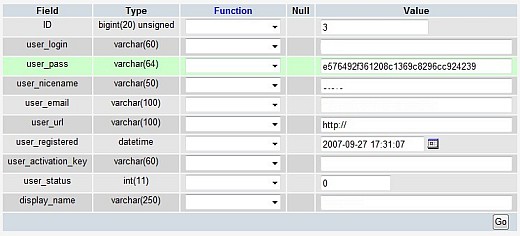
You will notice the password is strange, and not plain text. This is because for security reasons, WordPress stores the passwords as an MD5 hash.
We can’t just enter a normal text password, and should replace the MD5 hash of the password we don’t know with the MD5 hash of a password we do know.
To create an MD5 hash, I usually just search for “online MD5 hash” on Google, and come up with some great online tools for creating the result I need.
Example: Javacript MD5
In such tools, I enter what I want the password to be, click a button to process it, and it spits out the MD5 hash that I want to enter in the user_pass field.
Click Go to save the change, and then log in to WordPress using your new password.
Sidenote
If a hacker was able to change your password, or other information in WordPress, upgrading should also be one of the first things on your mind once you change your password.



Want an avatar? Get a gravatar! • You can link to this comment
You might want to watch out using online MD5 generators. Most of them have a MD5 decryption service available too. When you enter a string to create the MD5 hash, the hash and the string will be stored in their database. When you enter the MD5 hash to decrypt it, it will fetch the matching string from the database, thus revealing your password.
You could just create a php file on your server which echo’s the MD5 hash to the file using the md5() function.
Want an avatar? Get a gravatar! • You can link to this comment
Nice article, we will probably will translate it for WordPress Italy project if you don’t mind
But.. when you change the password you don’t need an external MD5 generator, you could simply select MD5 in the Function column and type the pawword in plain text, when you save the record the password will be stored after the MD5 hash algorythm was applied.
Just my 2 cents of contribution
Greetings
Want an avatar? Get a gravatar! • You can link to this comment
Ah, should have thought of that one
Want an avatar? Get a gravatar! • You can link to this comment
Same here! I bow down to you Stef… Feel free to translate the article. Still a good bit of knowledge for anyone working with WordPress to have though.
Want an avatar? Get a gravatar! • You can link to this comment
This is worked perfectly. Thanks.
Want an avatar? Get a gravatar! • You can link to this comment
Rommert is right, I wouldn’t use just any online md5 hash generator, you never know if they could be storing your passwords (paired with the hash).
Easiest way is to use phpMyadmin, find the user field, replace the existing hash with a plain text password, then select md5 from the function field, and save.
Want an avatar? Get a gravatar! • You can link to this comment
I second Shaun’s Post. Why bother with MD5 Hash generators when phpMyadmin will do it for you on the fly?
Want an avatar? Get a gravatar! • You can link to this comment
Or you could just change the email then use the blog’s login form to reset the password it gets sent to your email
This helps with the new versions of WP which encrypt the password with salts and shit which a normal md5 doesn’t work on.
Want an avatar? Get a gravatar! • You can link to this comment
my password generator might help… you type a word in the box then it gives you the word in md5 and crypt encryptions.
it is very handy when you forget your password or want to password protect directories using apache’s .htaccess file.
http://eric.torvinen.net/password-generator.php
I hope it helps…
I have other pages on the site too… feel free to look around what I have.
http://eric.torvinen.net
Want an avatar? Get a gravatar! • You can link to this comment
Thanks everyone for the suggestions. You made it easy and saved me a tonne of time.
Take it easy.
Want an avatar? Get a gravatar! • You can link to this comment
This was very helpful. It seems someone had hacked my blog and deleted the first of two posts. Ignored the problem for some time. I just went now and followed the instructions to reset the password in phpMyAdmin and can now get to my cpanel.
But I am bothered by the fact that someone could change my password and evidently steal it and perhaps try to link it other accounts I have across the web. Or am I just being paranoid?
I would like to translate the password that was in there to see if it was an old one that I had created and forgot, but if it is I don’t want that to get stolen on one of the sites that translates them. Or again, am I just being parnoid.
Bruce
Want an avatar? Get a gravatar! • You can link to this comment
Thanks so much for this
Lost all my data and everything earlier today, and my host blocks the mail() function unless I want to fork out $10 to be able to use it.
Want an avatar? Get a gravatar! • You can link to this comment
Very helpful article. Thank you very much!
Want an avatar? Get a gravatar! • You can link to this comment
I recently became admin of a website. They wanted me to update their blog, however, the original blog admin left the company. This post saved me a huge hassle! Thank you!!!
Want an avatar? Get a gravatar! • You can link to this comment
Wow..this worked perfectly!!! I forgot my password and i was able to rectify the problem within a few minutes!
Thanks for the solution!
Want an avatar? Get a gravatar! • You can link to this comment
This doesn’t work at all. Makes sense, but no. There’s a $P$9 at the beginning of all the other passwords in the table, I wonder if that has anything to do with it. I tried adding $P$G to my MD5 string manually but also no. Any other suggestions?
Want an avatar? Get a gravatar! • You can link to this comment
This was awesome. Worked like a charm. Thanks so much.
Want an avatar? Get a gravatar! • You can link to this comment
I have the same problem as jbalyo, but I got P$B$ instead. Did anyone figure out the solution?
Want an avatar? Get a gravatar! • You can link to this comment
For those of you having problems (P$B$ etc), this method will only work with WordPress 2.5 and lower. Newer versions use phpass encryption (not just MD5), so you cannot update your password via wordpress. You’ll have to use the “forgot password” function of your blog instead.
Want an avatar? Get a gravatar! • You can link to this comment
Eck, “via phpmyadmin”, not “via wordpress”.
Want an avatar? Get a gravatar! • You can link to this comment
Thanks a Lot David. Was able to reset my password easily
Want an avatar? Get a gravatar! • You can link to this comment
Lots of useful info here but I’ve followed through instruction on changing admin password and still can’t access my dashboard. I had 6 unauthorised users listed in the database so I deleted them all. I tried creating a new account but it won’t give me admin privlidges. Any other suggestions would be much appreciated.
Thanks
Wilson
Want an avatar? Get a gravatar! • You can link to this comment
hi
i also got P$B$ instead.
is there any way to crack this password .. can u recommend any site or software which can do it
Want an avatar? Get a gravatar! • You can link to this comment
Wilson, Ronald: sorry, the information depicted here is obsolete. WordPress uses the Portable PHP password hashing framework instead of MD5 hashing since version 2.5 (see this ticket) – so you cannot simply MD5 hash a new password and enter the digest into the database anymore. You have to encode it using the framework mentioned above.
I am planning to release an online encoder doing exactly that real soon. Watch my blog for details. It will accompany the famous online md5 encoder of mine, which by the way never saves the entered data.
Best regards
Stotti
Want an avatar? Get a gravatar! • You can link to this comment
Hi Everyone,
as announced i have implemented a WordPress password converter for WP versions of 2.5 and above. You can find it online at http://scriptserver.mainframe8.com/wordpress_password_hasher.php
I have written about it over at my place – stotti.blog(). There you will find detailled instructions on how to set a new password for your up-to-date WordPress installation soon.
Best
Stotti
Want an avatar? Get a gravatar! • You can link to this comment
There’s no external MD5 generator needed: You might as well use the MySQL internal MD5() function within phpMyAdmin.
Just enter your password in plain text and select ‘MD5′ in the ‘function’ drop down. MySQL will then store the password hashed.
You will notice a difference in look compared to the other users passwords (all password hashes are starting with ‘$P$B’, at least in my installation) but wordpress will update that on first login.
Want an avatar? Get a gravatar! • You can link to this comment
I tried every way imaginable to change the password, including using the forgot password link. Yes, I can change the password, but my blog keeps returning that “you do not have the proper permissions”. The admin permissions is “10″ correct? That’s what I see in the database. Any ideas?
Want an avatar? Get a gravatar! • You can link to this comment
Thank You for posting this! This helped!
Want an avatar? Get a gravatar! • You can link to this comment
Stotti,
Your effort is appreciated but the method doesn’t work. Could it be that the password is salted somehow? I noticed that your generator gives a different hash from the one I see in my testing installation – for the same password string. That’s what lead me to think of the salt issue.
My test installation does have modified strings on following lines:
define(‘AUTH_KEY’, ‘put your unique phrase here’);
define(‘SECURE_AUTH_KEY’, ‘put your unique phrase here’);
define(‘LOGGED_IN_KEY’, ‘put your unique phrase here’);
Is that the issue?
Thanks.
- Alex
Want an avatar? Get a gravatar! • You can link to this comment
Hi Alex,
you’re absolutely right. The hashing algorithm implemented in WordPress is using a salt. So each hash differs from the other – even if the original message is the same. Coherent my WordPress password generator (http://scriptserver.mainframe8.com/wordpress_password_hasher.php) is generating a different password hash each turn. Don’t worry, every generated hash is valid for your password.
If you have further questions i’ll be happy to answer them. But please ask them over at my blog (http://www.stottmeister.com/blog/2009/06/30/new-wordpress-password-hasher-tool/) where i may recognize it faster. I’ve seen your comment here just by coincidence. Thank you!
Best regards
- Stotti
Want an avatar? Get a gravatar! • You can link to this comment
Thanks! This page saved me. I tried to figure the password reset using phpMyAdmin from from the help page on the WordPress portal, but I think it’s missing a step, or it wasn’t that clear. With your instructions, I was able to change my password in 1 minute!
Want an avatar? Get a gravatar! • You can link to this comment
Hi,
hm i change the pw with this litel code it works just fine.
Create a new php file with the following code in your wp root.
#########
query(“UPDATE “.$table_prefix.”users SET user_pass = ‘”.wp_hash_password($_REQUEST["new_pw"]).”‘ WHERE user_login = ‘”.$_REQUEST["u_name"].”‘”);
?>
#########
Now you only need to do a request to this file with a browser url like this.
http://YourDomain/wordpress/newpw.php?new_pw=YourPassword&u_name=YourUser
But delete the file after your done ^_^
Sorry for my bad english i tried my best >_<
Want an avatar? Get a gravatar! • You can link to this comment
Ah sorry i forgot the code tag
require_once('wp-load.php');
$wpdb->query("UPDATE ".$table_prefix."users SET user_pass = '".wp_hash_password($_REQUEST["new_pw"])."' WHERE user_login = '".$_REQUEST["u_name"]."'");
Want an avatar? Get a gravatar! • You can link to this comment
Something new for me is that mysql/phpmyadmin knows how to md5()
I was using various internet tools to encrypt words into md5 has untill now
Want an avatar? Get a gravatar! • You can link to this comment
Thanks for the tip.
Want an avatar? Get a gravatar! • You can link to this comment
Really Useful post for me, tried and did it successfully.