The Ultimate bbpress Guide
BBpress, the latest project from team WordPress finally reached its first public release a few days ago. BBpress was in development for ages, and I was never able to get early versions to work right alongside WordPress, so I scrapped any ideas of having an integrated forum for Devlounge.
But with the first public release, WordPress integration has been cleaned up, and now it’s our turn to help you customize bbpress like we’ve done for wordpress, in the Ultimate BBPress Guide.
Let’s Install
The installation process for bbpress is incredibly simple, as it is in installing WordPress. The entire process contains of 3 steps: edit config, upload, and run installer. Can’t get much simpler than that.
First, let’s upload the contents of “bbpress-0[1].72/bbpress…” into a folder on your web server. If you plan on integrating the user database with an existing wordpress database, make sure to upload the bbpress folder inside the location of your wordpress install, ie if wordpress is installed under “www.yourdomain.com/blog”, upload the bbpress folder and its contents to “…blog/bbpress/”.
Next, we need to edit the config file. Open either the local or remote copy of config-sample.php to do some editing. You’ll need to have created a mysql database, unless you plan on integrating with wordpress, in which case you’ll need to use the wordpress database information. (If you can’t seem to remember your WP database information, download your wp-config.php file from the server so you can grab the information required.)
Now let’s take a look at the config-sample.php file you just opened up:
<?php
// ** MySQL settings ** //
define('BBDB_NAME', 'bbpress'); // The name of the database
define('BBDB_USER', 'username'); // Your MySQL username
define('BBDB_PASSWORD', 'password'); // ...and password
define('BBDB_HOST', 'localhost'); // 99% chance you won't need to change this value
// Change the prefix if you want to have multiple forums in a single database.
$bb_table_prefix = 'bb_'; // Only letters, numbers and underscores please!
// If your bbPress URL is http://bbpress.example.com/forums/ , the examples would be correct.
// Adjust the domain and path to suit your actual URL.
// Just the domain name; no directories or path. There should be no trailing slash here.
$bb->domain = 'http://my-cool-forums.example.com'; // Example: 'http://bbpress.example.com'
// There should be both a leading and trailing slash here. '/' is fine if the site is in root.
$bb->path = '/'; // Example: '/forums/'
// What are you going to call me?
$bb->name = 'New bbPress Site';
// This must be set before running the install script.
$bb->admin_email = '[email protected]';
// Set to true if you want pretty permalinks.
$bb->mod_rewrite = false;
// The number of topics that show on each page.
$bb->page_topics = 30;
// A user can edit a post for this many minutes after submitting.
$bb->edit_lock = 60;
// Your timezone offset. Example: -7 for Pacific Daylight Time.
$bb->gmt_offset = 0;
// Your Akismet Key. You do not need a key to run bbPress, but if you want to take advantage
// of Akismet's powerful spam blocking, you'll need one. You can get an Akismet key at
// http://wordpress.com/api-keys/
$bb->akismet_key = false;
// The rest is only useful if you are integrating bbPress with WordPress.
// If you're not, just leave the rest as it is.
$bb->wp_table_prefix = false; // 'wp_'; // WordPress table prefix.
$bb->wp_home = false; // WordPress - Options->General: Blog address (URL) // No trailing slash
$bb->wp_siteurl = false; // WordPress - Options->General: WordPress address (URL) // No trailing slash
// Use the following line *only* if you will be loading WordPress everytime you load bbPress.
//define('WP_BB', true);
/* Stop editing */
define('BBPATH', dirname(__FILE__) . '/' );
require_once( BBPATH . 'bb-settings.php' );
?>
As you would with any database backed scripted, you’ll need to fill in the database name, mysql username, password, and host, which is almost always “localhost” and can be untouched. If you’re integrating with wordpress, simply input the WP database information into this area.
Next you’ll need to move to lines 12-17 and set the domain name and then the location of the bbpress directory. Following the instructions in the config file itself will guide you through setting the rest of the variables. When you get down to lines 43 and 44, you’ll notice a note saying that the rest is only useful when integrating with the WordPress database.
If you are integrating with WordPress like I happen to be during this test install, we’ll need to edit the final three config variables dealing with wordpress. The first is setting the wordpress table prefix, which unless you changed it, it will be ‘wp_’. Delete the “false” and replace it with the table prefix name. It will look something like this:
[mysql]$bb->wp_table_prefix = ‘wp_’; // ‘wp_’; // WordPress table prefix.[/mysql]
Next you’ll have to set the blog url and site url, both pulled from the wordpress admin panel under “Options>General”. Almost every time the wordpress url and blog url will be the exact same. In this case it was “http://astereostudio.com/on”, so after setting this in the config lines 47-48 looked like this:
[mysql]$bb->wp_home = ‘www.astereostudio.com/on’; // WordPress – Options->General: Blog address (URL) // No trailing slash
$bb->wp_siteurl = ‘www.astereostudio.com/on’; // WordPress – Options->General: WordPress address (URL) // No trailing slash[/mysql]
When you’ve setup all the neccessary variables, save the file as config.php and upload it to the root of your bbpress install, or if you we’re using a live remote copy, simple save it and rename it to config.php.
Note: If integrating with wordpress, there is a WordPress plugin and BBpress plugin to fix some of the early version problems of bbpress and wordpress user database sharing.
Running the Installer
Head over to the location of your bbpress install in a web browser. Ours happened to be http://www.astereostudio.com/on/forums/, which lead us to a nice message saying it didn’t look like we had installed bbpress yet. This then brought up to the installer, which looks pretty damn familiar to WordPress.
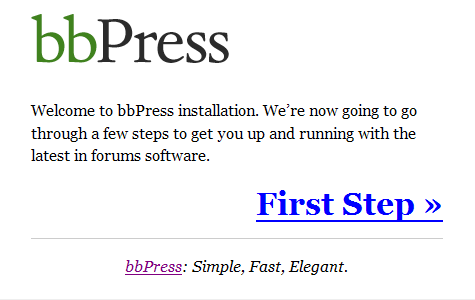
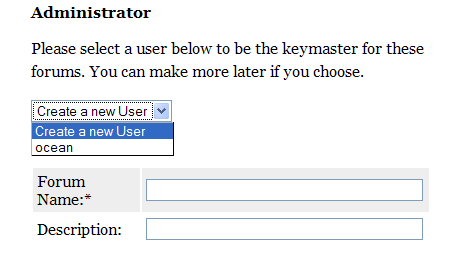
After hitting first step you’ll be brought to the forum setup screen, which will ask you to fill out the forum name and description. If you were integrating with wordpress, this screen will also become very important! If you did everything right, there should be a dropdown menu listing your wordpress admin account username. Selecting this means your integration was successful, and your forum admin login will be the same as wordpress.
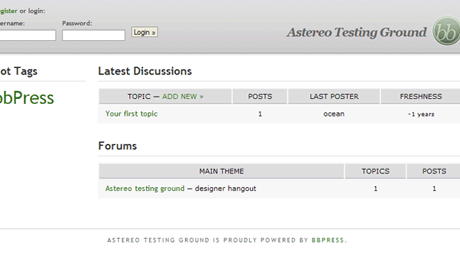
After hitting the “Continue to Step 2″ button bbpress will run through and create its tables, and if everythings correct you will be then brought to the bbpress homepage.
On the next page we’ll dive right in and customize this baby!


Want an avatar? Get a gravatar! • You can link to this comment
Great guide. I’ll get around to studying it more before I decide it’s time to try to implement on my site.
I have a question for you though (since I’m very new to bbPress): Is there any way to make this as simple as a “plugin”?
It would be nice to be able to slap this puppy into my already heavily used site without the need for customization. Can’t it just take the style elements from my existing style.css file?
I have a three column theme and would love it just to “magically appear” in the center column the way any other page would, while maintaining the sidebars, headers and footers.
Thanks and look forward to learning more (if and when I ever get some sleep).
Perry
Want an avatar? Get a gravatar! • You can link to this comment
Thank you for a very useful guide. Got me pasta few little problems.
Want an avatar? Get a gravatar! • You can link to this comment
yeahh, seriously, this is not complete. thank you for all of your hard work. But dude, this is bearly installation.
Want an avatar? Get a gravatar! • You can link to this comment
You’re the first to complain
Want an avatar? Get a gravatar! • You can link to this comment
that was a great help, thanks! Just those minor things I forgot to do..:)
Want an avatar? Get a gravatar! • You can link to this comment
I usually am
appreciate your attempt tho, However, here is few things that i think may make it stronger have they been addressed.
1: What if i’m using more than one database for my WP and BB applications?
2: Sessions, how do i share them btween wp and bb.
3: User tables! between wp and bb.
4: Common mistakes.
Want an avatar? Get a gravatar! • You can link to this comment
Thanks, I’ll consider adding them in
Want an avatar? Get a gravatar! • You can link to this comment
Trying to install with your guide, but keep finding errors on line ’46′.
Parse error: syntax error, unexpected T_VARIABLE in /home/bookieb/public_html/bbpress/config.php on line 46
Want an avatar? Get a gravatar! • You can link to this comment
sorry – where should:
http://trac.bbpress.org/attachment/ticket/430/display-name.php
…get installed to? WordPress or front-end of the bb installation (under wp/bb)?
Want an avatar? Get a gravatar! • You can link to this comment
That one is installed under bbpress
Want an avatar? Get a gravatar! • You can link to this comment
Hi- I’m attempting this integration, but I did what you said, however, when I do the bb install the admin drop down list does not display- now what?
Want an avatar? Get a gravatar! • You can link to this comment
Hi,
Trying to get this set up and integrated with and existing WP installation.
Can anyone suggest what might be happening here?
http://www.sleeptalkin.com/blog/bbpress/index.php
Want an avatar? Get a gravatar! • You can link to this comment
Your config url for the bbpress install is not right. It’s looking for the bbpress style sheet in your blog folder. Look at like 15 of the config file where it asks for your bbpress install url. Make sure it’s /blog/bbpress/. (or whatever the location of your forum is)
Want an avatar? Get a gravatar! • You can link to this comment
aj … thanks. i added the directory and it looks more like a forum now : )
but … the links are not being found now?
http://www.sleeptalkin.com/blog/bbpress/topic/4?replies=1#post-4
any thoughts on this?
Thanks again for your help. Much appreciated.
Want an avatar? Get a gravatar! • You can link to this comment
NOTE: the new version of bbpress will not show the drop down when integrating wordpress. You have to manually type in the username on the wordpress account. Leaving it blank will create a NEW account as the KEY MASTER>
Want an avatar? Get a gravatar! • You can link to this comment
Hello!
I did a fresh installation of WP and bbPress, following strictly all instructions. It seemed to be successful but when I launch the forum and I try to add a topic or a post, I get an error message:
“The requested URL /bbpress/topic/inca-ceva was not found on this server.
Additionally, a 404 Not Found error was encountered while trying to use an ErrorDocument to handle the request.”
To my surprise I do not have the folder ‘topic’ on my bbpress folder… I created it manually, using 777 permissions, but nothing changes. Could you give me any advice, lease?
Best Regards!
Mihai
Want an avatar? Get a gravatar! • You can link to this comment
Hello!
I tried to do a WP – BBPress integration and I get this error message:
“Warning: Missing argument 2 for bb_bozo_pre_post_status() in /public_html/smi/forum/bb-includes/bozo.php on line 173
Warning: Missing argument 3 for bb_bozo_pre_post_status() in /public_html/smi/forum/bb-includes/bozo.php on line 173
Warning: Cannot modify header information – headers already sent by (output started at /public_html/smi/forum/bb-includes/bozo.php:173) in /public_html/smi/wp-includes/pluggable.php on line 390″
It’s any hope to solve it?
Want an avatar? Get a gravatar! • You can link to this comment
Hi, thanks for the user guide, I have a question and a problem.
First the question, you mention about plugins for wordpress and bbpress i’ve installed the wordpress one but am unclear on where the bbpress display-name.php file should go, I mean which directory should it be placed into?
Now more importantly i think is my problem , I followed ur steps to install bbpress integrated into wp and all seemed simple. However when i got to the stage of Running the Installer i get the following Error:
Fatal error: Call to undefined function: __() in /home/the3eco/public_html/home/bbpress/bb-includes/default-filters.php on line 81
Is this common & any ideas what i should do ?
Many thanks
Want an avatar? Get a gravatar! • You can link to this comment
Hi,
Thanks for a brilliant simple straight to the point guide you walked me through a successful install in 10 minutes. Thanx:-))))
Want an avatar? Get a gravatar! • You can link to this comment
Hi,
thanks for the guide…
But I am not able to get the result.
I have followed each and every step told by you 100%.
I just want to know whether bbpress works on yahoo small business servers????
Please anyone help me…I am almost crying here.I am a 20 year old student and just today I purchased a domain from yahoo small business and for the 1st time I am trying this!
Please please please help me!
Thanks in advance.
Want an avatar? Get a gravatar! • You can link to this comment
if wordpress is installed under “www.yourdomain.com/blog”, upload the bbpress folder and its contents to “…blog/bbpress/”.
————————————–
I don’t think so, can’t we install bbpress on http://www.yourdomain.com/bbpress when integrating with http://www.yourdomain.com/blog ??
Want an avatar? Get a gravatar! • You can link to this comment
I found these 10 reasons to chose bbpress and once I was convinced, I found your nice installation article. I can now plunge into bbpress.
Want an avatar? Get a gravatar! • You can link to this comment
please update the install method for WP 2.7
Want an avatar? Get a gravatar! • You can link to this comment
I have uploaded the bbpress in my server. and i get the 1st welcome installation screen. After i press “lets get started” .i get the following error…
“Warning: html_entity_decode() expects parameter 2 to be long, string given in /home/hnsalumn/public_html/ryt/bbpress/bb-includes/wp-functions.php on line 113″
Please HELP !
Want an avatar? Get a gravatar! • You can link to this comment
Thanks for the great instructions. Sure came in handy.